
In this article, we’ll guide you through the process of changing the sort order in the Setary bulk editor. For example, if you’re using Setary to update products then you might want to sort the product list ID, Name, or SKU.
Step 1: Open Setary
Begin by launching Setary and navigating to the tab containing the content you want to sort.
Step 2: Click the filter arrow on the relevant column
Locate the column header for the data you’d like to sort by, such as ID, Name, or SKU. Click on the filter arrow icon next to the column header to open the sorting options.
Step 3: In the “Sort” section, choose your order: A to Z or Z to A
In the “Sort” section of the dropdown menu, you can choose between two sorting orders: A to Z (ascending) or Z to A (descending). Select the desired order for the column you’re sorting.
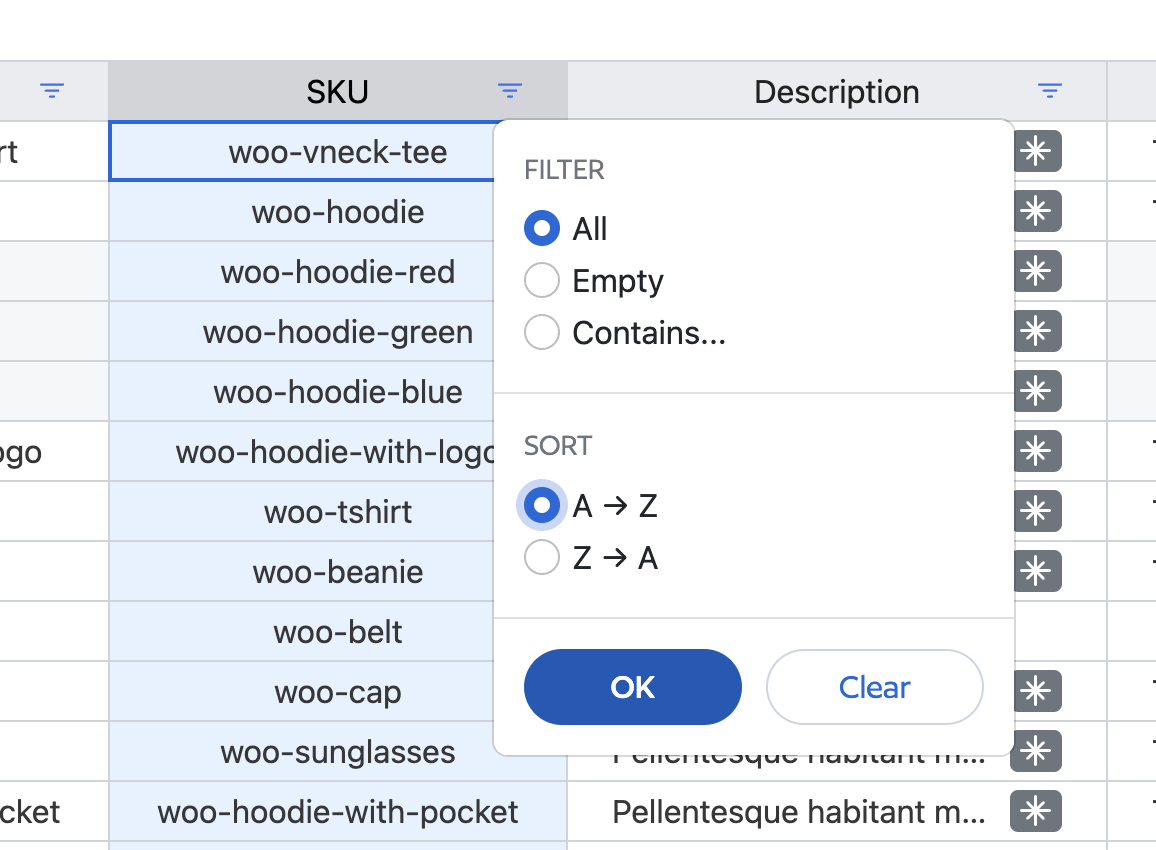
Step 4: Click “OK”
After choosing your preferred sorting order, click the “OK” button to apply the sorting settings.
Step 5: Sort complete
The items in the spreadsheet will now be sorted based on the column and order you’ve selected. You can switch between sorting options by repeating the steps above as needed.
Note: Keep in mind that you can only sort by one column at a time. If you choose to sort by another column, any existing sort setting will be removed and replaced with the new one.