
Managing multiple WordPress sites or WooCommerce stores can be challenging, especially when it comes to updating content. However, with the help of Setary, you can now update content and products across multiple sites with ease. This guide will walk you through the steps.
Step 1: Make Changes in Setary
Open the Setary bulk edit spreadsheet. Edit the content you want to update within Setary (e.g. WordPress pages or posts, or WooCommerce products).
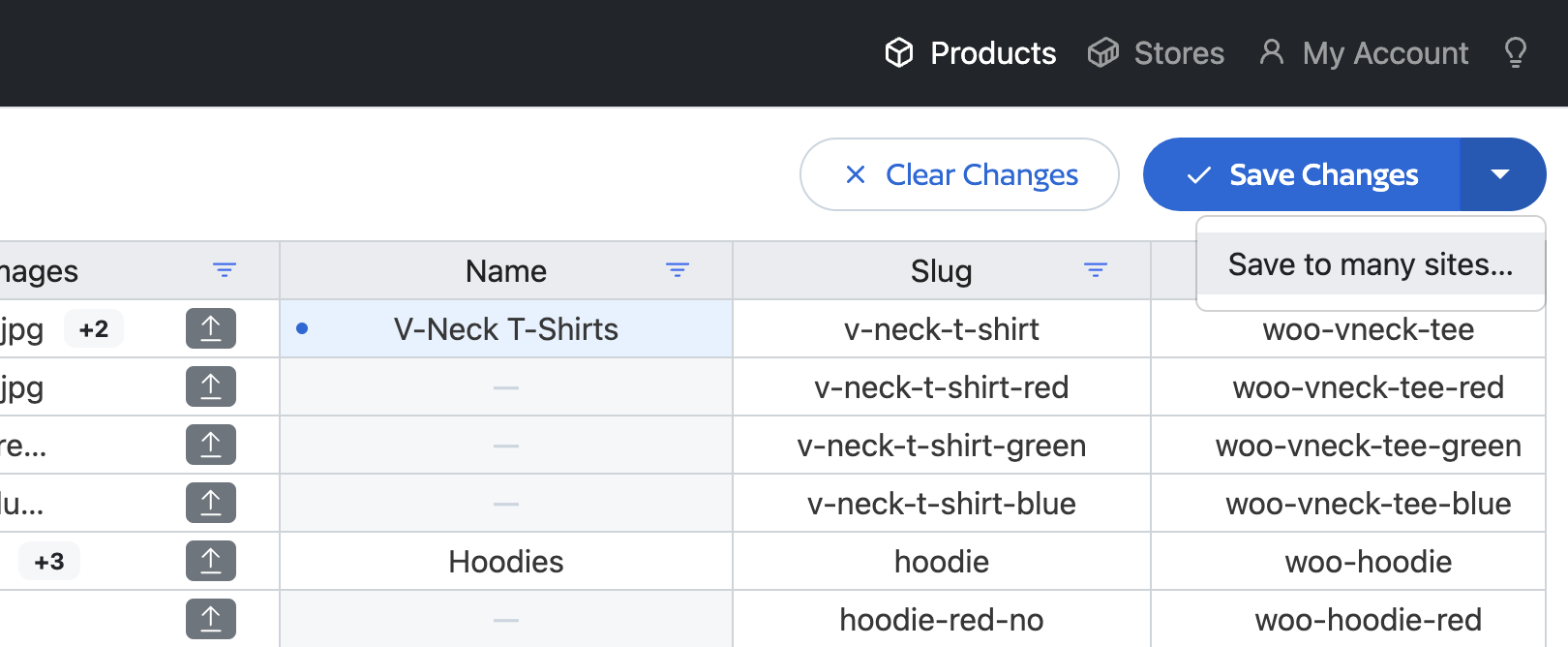
Step 2: Click the Dropdown Arrow on the “Save Changes” Button
Next, click the dropdown arrow on the “Save Changes” button. From the dropdown menu, select “Save to Many Sites”.
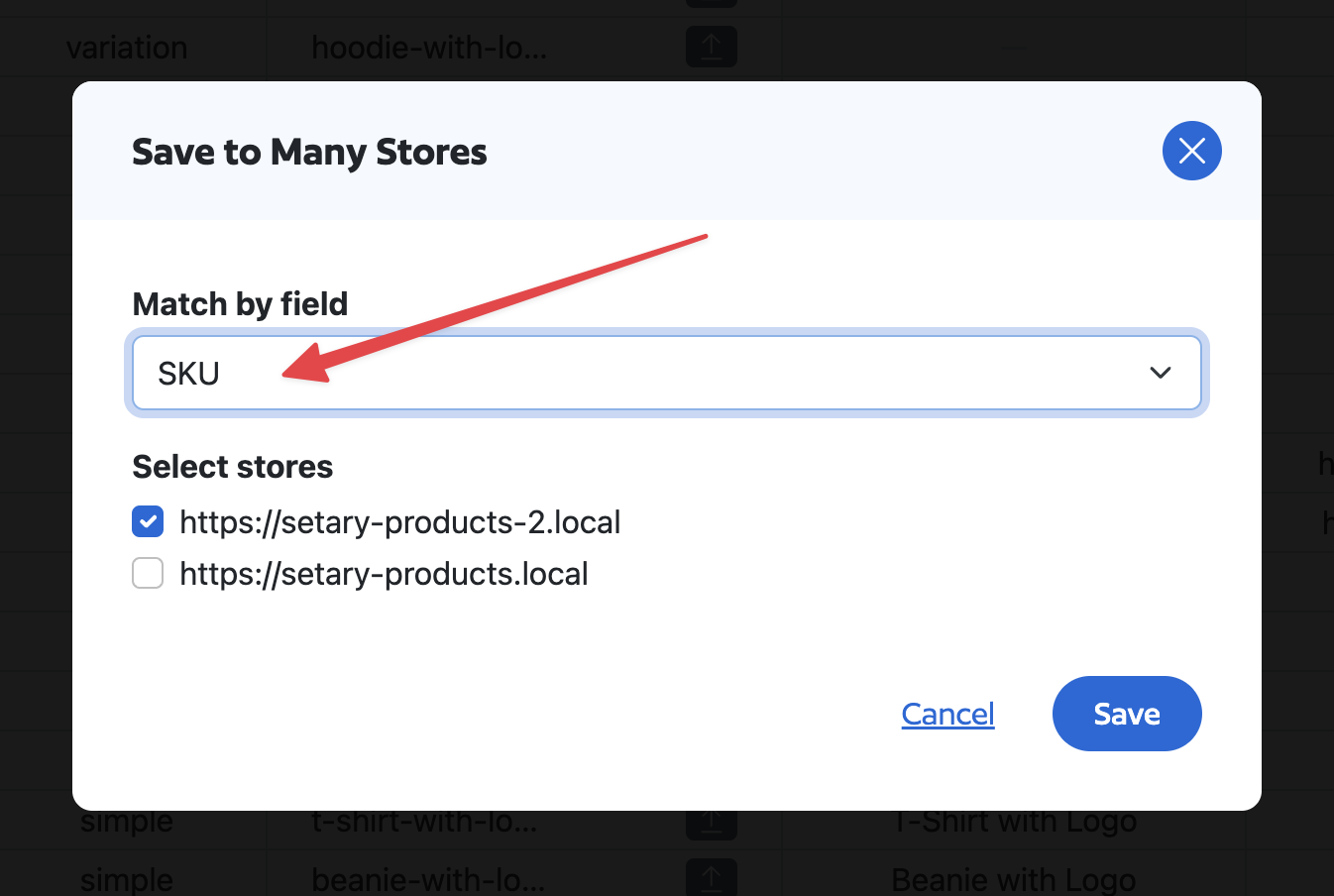
Step 3: Choose the Field to Match By
In the modal that appears, you will see a dropdown menu where you can choose the field to match by. The options include ID, SKU, name, or Slug. Choose the field that you want to use to match between the two sites.
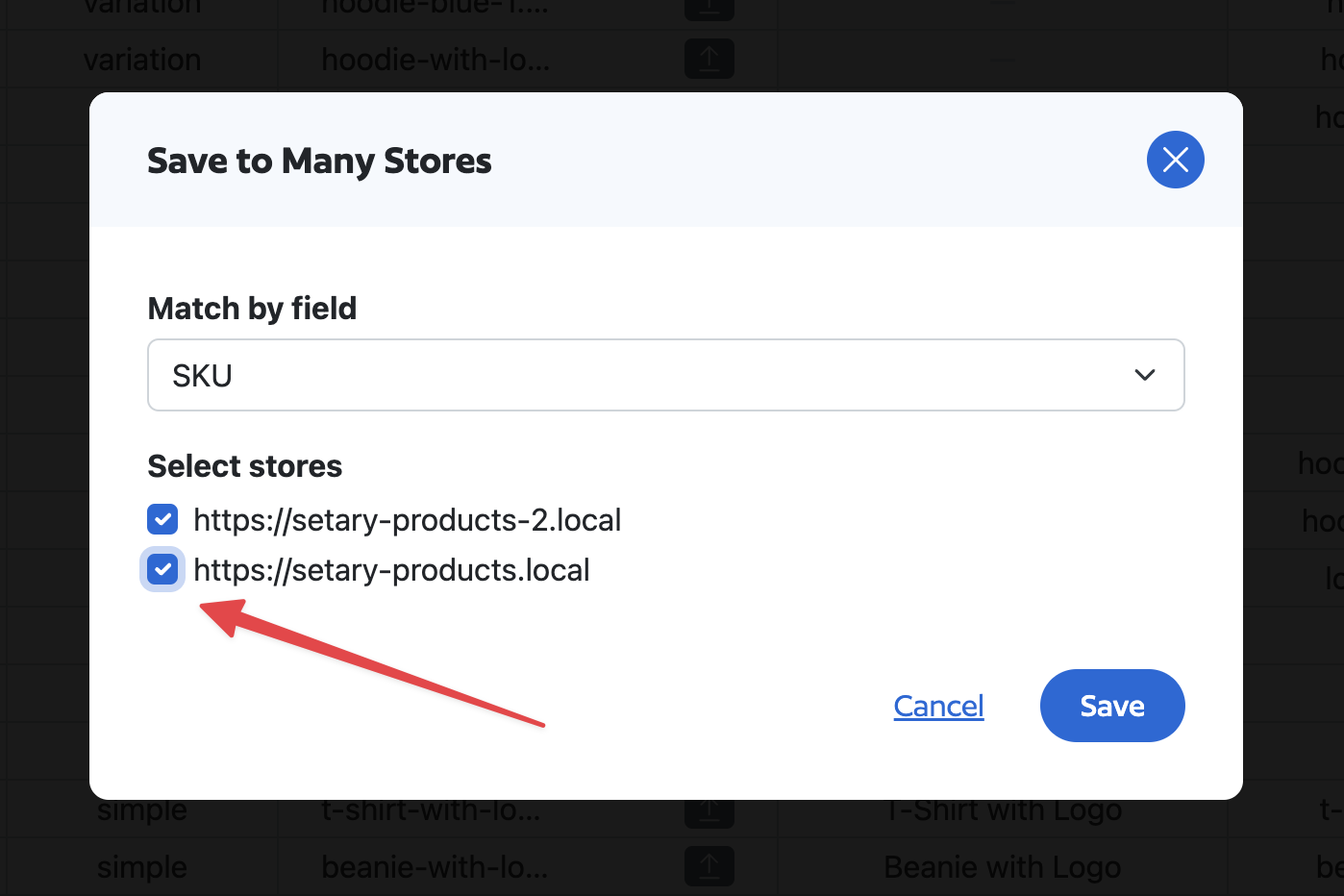
Step 4: Check the Sites You Want to Update
Next, check the sites you want to update. You can select one or multiple sites, depending on your needs.
Step 5: Click the “Save” Button
Finally, click the “Save” button to push your updates to all the selected sites where a matching page/post/product is found.
Updating content across multiple sites can be a tedious task, but with the help of Setary, you can now do it with ease. By following the steps outlined in this guide, you can update your content across multiple sites with just a few clicks. Start using Setary today and experience the convenience of updating products across multiple sites at once.