
Say goodbye to editing each page, post or product individually. Just select the items you want to update using the checkbox column and let Bulk Actions handle the rest 🚀
There is a lot of power within this button and a lot of different ways you can use it, like setting up a flash sale.
Let’s get familiar with bulk actions in Setary:
Step 1: Select items
Firstly select the items you wish to apply the bulk actions to. Do this using any of these quick methods:
- Clicking the top left hand checkbox which will then select all items.
- Filtering and doing the same to select all within the filter.
- Selecting items one-by-one.
Remember: The Select All will only select the items loaded into the current Setary view, so you may need to scroll down to update the selected count, which will show on the next step.
Step 2: Select Bulk Actions
You will now see the Bulk Actions button display above the spreadsheet. Once clicked, you will see how many items you’ve selected vs how many there are in the entire catalog.
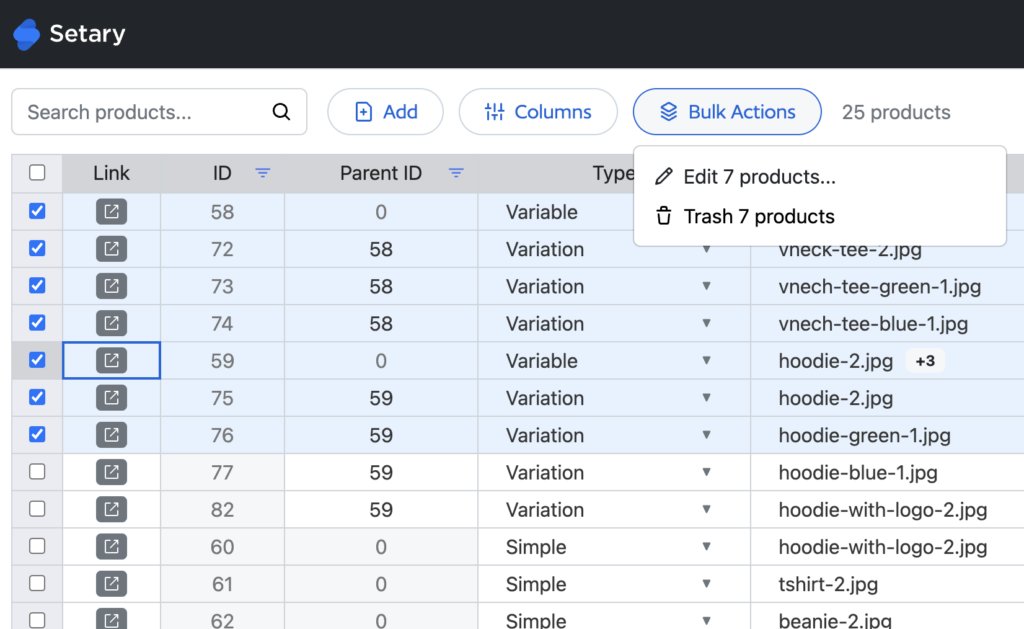
Step 3: Select edit and look at your options
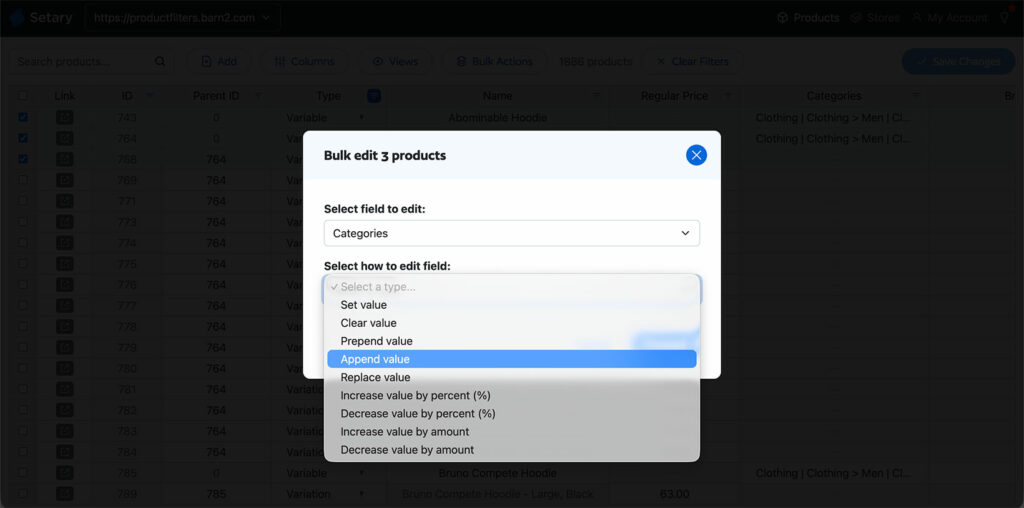
Once you’ve chosen to edit, you will see a dialog asking you to select the column you’d like to bulk edit, firstly select this and you will then be given a list of bulk actions that you can apply:
- Set Value – This will replace/set to the whole cell.
- Clear Value – This will remove any value in the cell.
- Prepend Value – This will add a value to the start of the existing value.
- Append Value – This will add a value to the end of the existing value.
- Replace Value – This can find and replace a value.
- Increase Value by Percentage – This can increase a value by a percentage.
- Decrease Value by Percentage – This can decease a value by a percentage.
- Increase Value by an amount – This can additionally add a value to an existing value.
- Decrease Value by an amount – This can subtract a value from an existing value.
We have a lot more bulk actions to come, if something is missing, let us know!
Step 4: Apply your actions
Once you’ve applied your bulk actions, Setary will stage these changes but not save them, so double check you’re happy with the actions that you’ve applied and click Save Changes.
You’re all done!
This a real game changer and you’ll soon notice how much time you will save with these actions.