
Setary makes it possible to add, manage and update your WordPress site’s featured images and your WooCommerce store’s product and product variation images. You can do this directly in the bulk editing spreadsheet, without needing to visit a separate page for each item.
There are three ways to manage featured images in Setary:
- In the Images column of the spreadsheet.
- By copying and pasting existing images.
- By importing images in bulk.
Manage images directly in the spreadsheet
To do that, you can follow these steps.
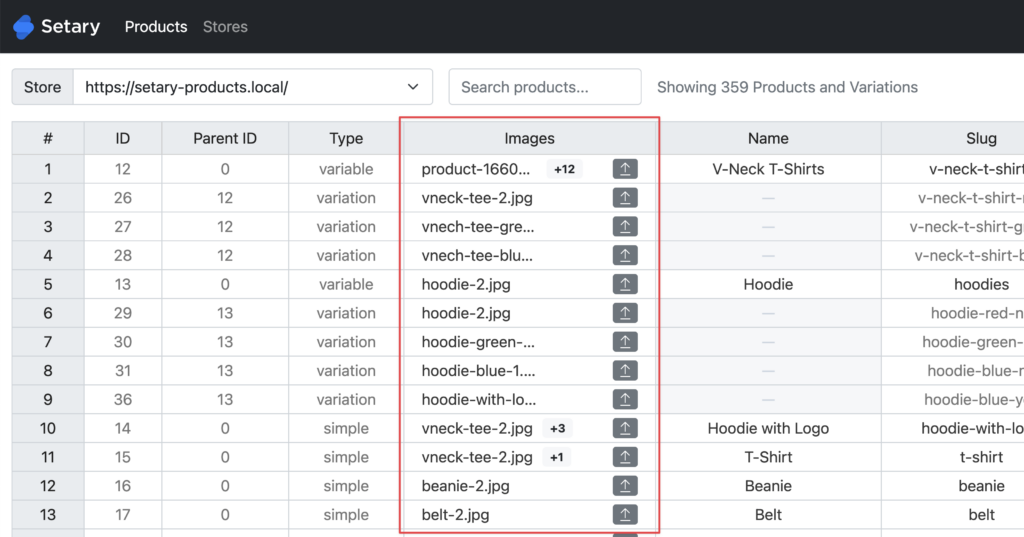
- Navigate to the Setary app and look for the “Images” column. Here you will see the name of the first attached image if one exists, followed by a count of how many additional images there are.
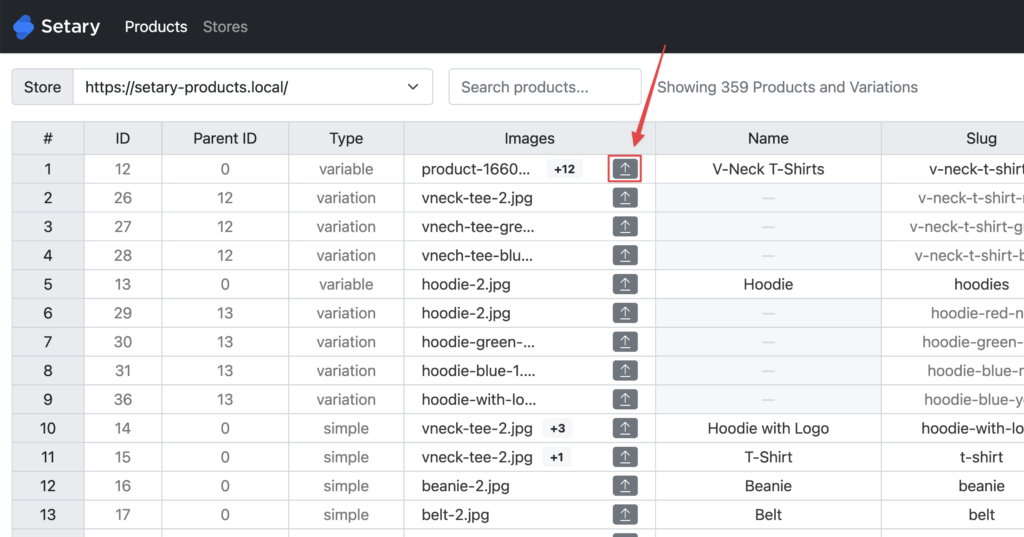
- Click the “Upload” icon. This will open the image manager interface, where you can remove, upload, or choose images to attach from your WordPress site’s media library.
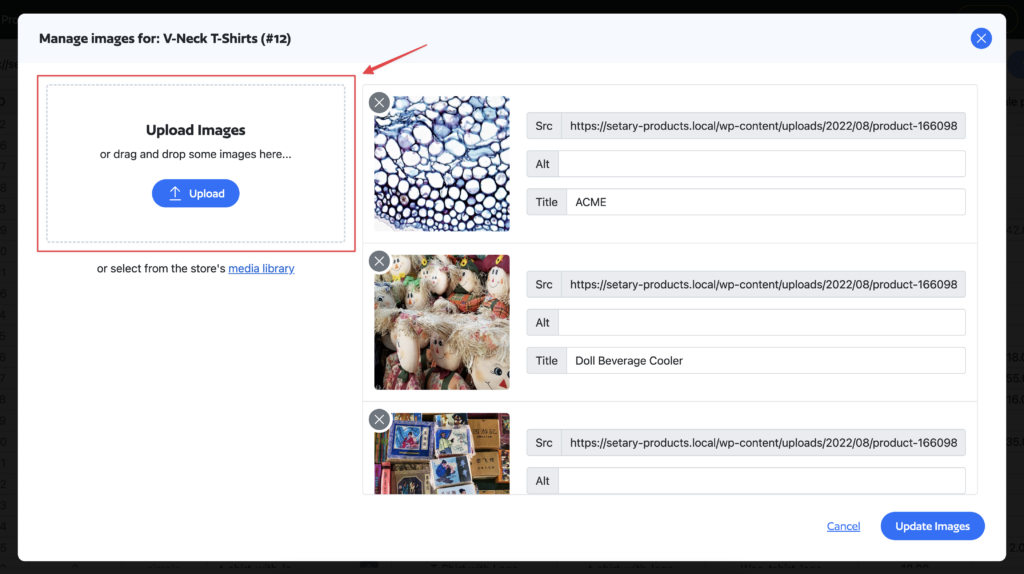
- To upload new images: You can either drag and drop images into the labeled area or click it to browse and upload new images.
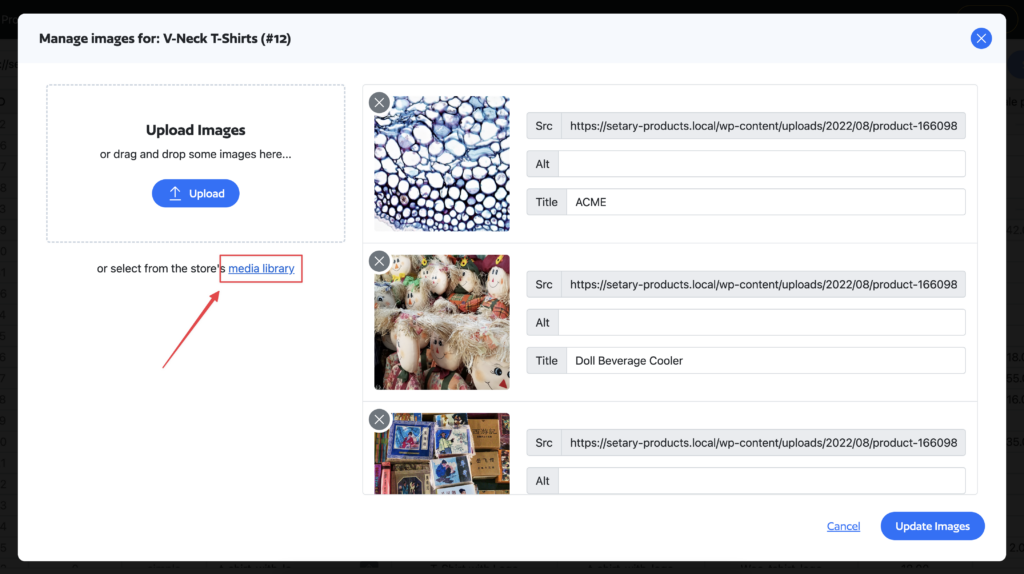
- To choose images from the media library: Click the “Media Library” link. once loaded, click the images you’d like to attach to the post/product, then click “Add”. You can navigate between media library pages without losing your selections.

- Once you’ve selected your images, click “Add”. This will mark your changes as a pending update.
- To publish the changes, click “Save Changes”.
How to copy and paste images
You can work with the images column of the spreadsheet even faster by using copy and paste.
There are 3 functions here:
- Copy and paste from cell to cell which will clone all the images.
- Use the drag down on the bottom right to clone down images.
- Finally, you can copy and paste live URLs into the images cell and upon saving these images will be downloaded to your server. This is a really great trick so you don’t have to manually download and reload – Setary will do all this for you.
With the last copy and paste of a live URL, you can even do this with a comma separated string like the below example: (not including the speech marks)
”https://example.com/image1.jpg, https://example.com/image2.jpg”Bulk import images
We have a separate article on how to import images in bulk via a CSV file.
Setary makes editing featured images a very quick process for you. Start updating your images today.