
Every WordPress site collects clutter over time. Old posts pile up. WooCommerce stores end up with hundreds of test products after a WooCommerce to Shopify migration. Spam comments build up faster than you can clear them. All this means that at some point, you need to delete a lot of things at once.
The standard WordPress admin handles small delete jobs well. However, it slows down or times out once you try to bulk delete a few hundred items ore more. Also, it doesn’t filter by date range, custom field values, or product attributes.
This guide covers four methods for bulk deleting anything in WordPress. I’ll explain when to use each one, the practical limits, and how to avoid breaking your site. The same methods work for posts, pages, WooCommerce products, users, custom post types, and taxonomies.
What WordPress Bulk Delete Means
WordPress bulk delete is the process of removing multiple items in a single action instead of one at a time. It applies to any content type stored in WordPress. That includes posts, pages, WooCommerce products, users, comments, custom post types, and taxonomy terms.
Most people reach for bulk delete once they have more than 100 items to remove. Below that, the standard admin screens cope fine. Above that, you need a faster method.
Before You Start: Back Up Your Site
Bulk deletion is irreversible once the trash is emptied. I always take a full backup before any large deletion. It only takes a few seconds and saves hours of recovery work if something goes wrong.
Use whatever backup tool you trust. UpdraftPlus, Solid Backups, and your host’s built-in backups all work. Just make sure the backup is recent and includes the database, not only files. The database is where the actual content of your website lives.
I also recommend testing first. To test, use your chosen method to delete 5 items, check the result on the front end, then scale up. If you have a staging site, use it. Avoid running large deletions directly on a live site during business hours.
One more thing to check before you start: Ecommerce platforms like WooCommerce order reference products. If you delete a product that has past orders, those order records still exist but show the product as missing. That’s usually fine for old test products, but worth knowing before you commit.
Method 1: WordPress Built-In Bulk Actions
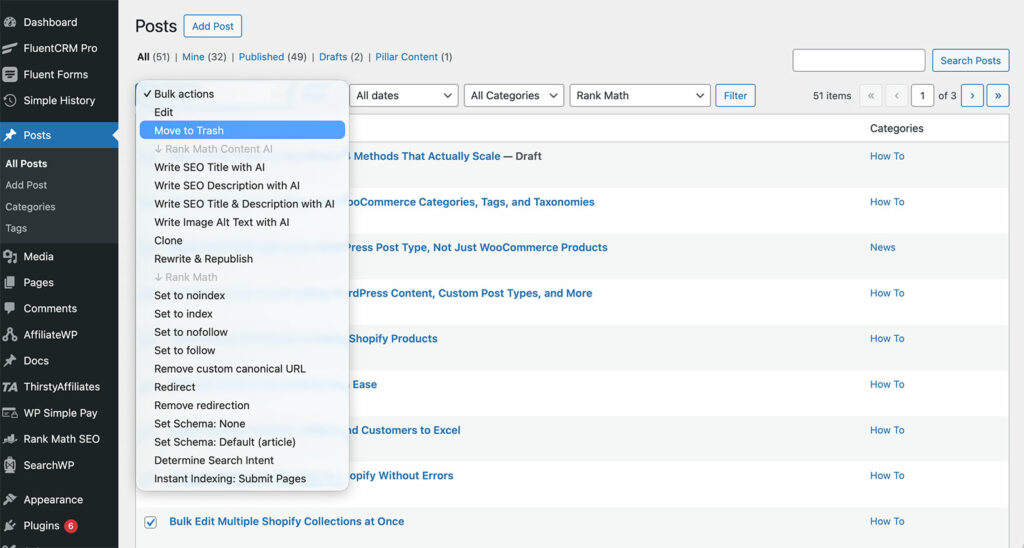
The built-in bulk actions feature is your starting point. It lives inside every list screen in the WordPress admin. You’ll find it under Posts → All Posts, Pages → All Pages, and Products → All Products. The same dropdown sits on the Users and Comments screens too.
Best for: Bulk deleting up to a few hundred items of a single content type. This method is free with no setup or plugins needed.
How to Bulk Delete Using Built-In Bulk Actions
- Go to the admin screen for the content type, for example Posts → All Posts.
- Click ‘Screen Options’ at the top right and set items per page to 999.
- Use filters or search to narrow down the list, if needed. You can filter posts by status, month, or category before bulk deleting.
- Tick the header checkbox to select all items on the page.
- Open the ‘Bulk Actions’ dropdown and choose ‘Move to Trash’.
- Click ‘Apply’.
- Open the trash, select all, and choose ‘Delete Permanently’. Alternatively, skip this step, and the trash will empty itself in a few weeks.
The same flow works for pages, WooCommerce products, users, and comments. Each screen has its own bulk actions dropdown with relevant options.
When Built-In WordPress Bulk Delete Actions Fall Short
Bulk deleting posts and other content with native WordPress has real limits. For example:
- The admin screen can time out around 500 items.
- You can’t filter by date range or custom field values.
- And you have to repeat the process for each content type separately.
WordPress’ ‘items per page’ setting helps, but only up to a point. Setting it to 999 works on modern hosts with enough memory. However, on budget shared hosting, you may need to drop it to 200 or 300 (or even as low as 50) to avoid memory errors and crashes. Watch for white screens or blank list pages, which usually mean PHP has run out of memory.
Filtering is the other big constraint. The built-in dropdowns cover categories, tags, and status, plus a date filter for the month. They don’t cover date ranges, custom fields, or WooCommerce product attributes. If you need that level of filtering, jump to Method 2 or Method 4.
Pro tip: Use the category, tag, and status filters before selecting which posts to bulk delete. This is how you delete “all posts in the News category” without affecting other content.
Method 2: Setary – Bulk Delete at Scale
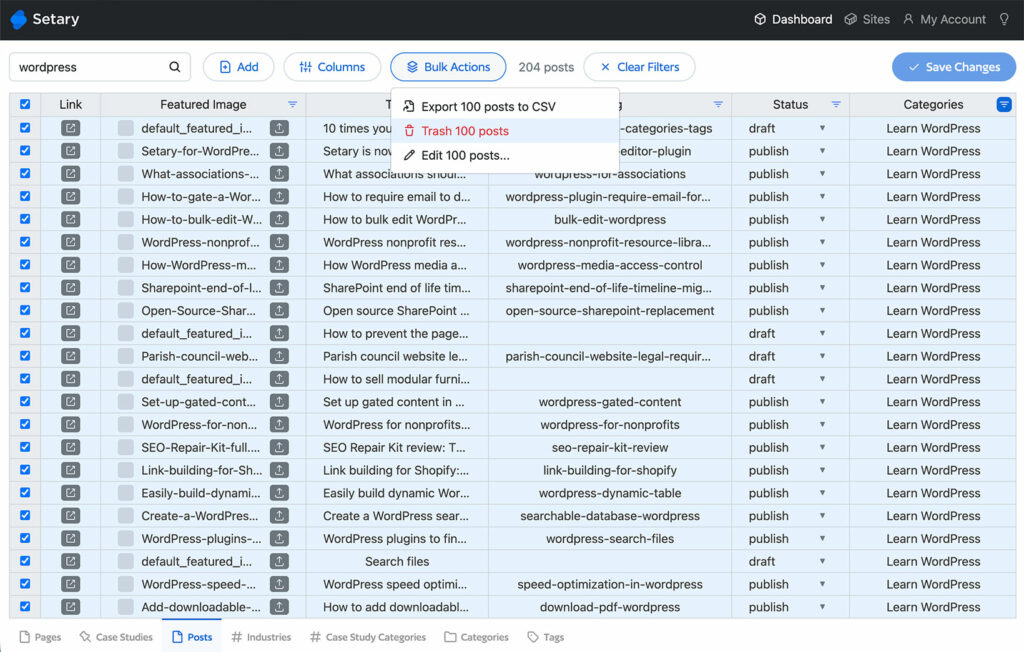
Setary is the right tool when bulk delete is part of a wider cleanup job. It gives you a spreadsheet view of your WordPress content, with full filtering on every column. Then you can select rows and delete them in bulk.
Setary runs as a SaaS, separately from your WordPress site. That means no browser timeouts and no admin screen lag, even with thousands of products. I find this is the biggest practical difference compared with plugin-based options.
Best for: WordPress sites and WooCommerce stores with large amounts of content to bulk delete and edit. Useful for content sites that need frequent cleanup, or anyone who prefers spreadsheets over admin list screens.
How to Bulk Delete Using Setary
- Sign up at setary.com and connect your WordPress site.
- Open the spreadsheet view for the content type you want to clean up.
- Apply filters or use the search box to narrow down the rows. For example, filter products by zero stock or filter posts by draft status or a particular category or taxonomy term.
- Select the rows you want to delete.
- Click ‘Delete’ and confirm.
Setary supports WooCommerce products, posts, pages, and custom post types. It doesn’t currently bulk delete users, comments, or taxonomy terms. For those, see Method 1 or Method 3.
What Setary Does Differently
The filtering is the standout feature for me. You can filter by any column, including custom fields and WooCommerce product attributes. So you can delete things like “all variable products with no variations” or “all posts with an empty SEO description”.
Speed is the second factor. Setary is built specifically to handle thousands of rows at a time. Large deletions complete in seconds rather than minutes.
The third advantage is the preview. Setary shows your changes in the spreadsheet before syncing them to WordPress. So you can spot mistakes before they hit your live site.
Method 3: Bulk Delete Plugins
Generally, it’s better to use Setary than a dedicated WordPress bulk delete plugin because you can use it for all your bulk content management needs. This means that you get more for your money. However, you can only use it to edit WordPress posts, post types, custom fields, and taxonomies. This means that if you need to edit something different, such as users, then you’ll need a bulk edit plugin instead.
Free bulk delete WordPress plugins handle users by role, spam comments at scale, taxonomy terms, and meta values. Two options dominate the WordPress.org repository, so I’ll tell you about both of them.
Best for: Jobs the built-in actions can’t handle and Setary doesn’t cover. Deleting users by role is a good example of this.
Recommended Plugins
- WP Bulk Delete covers posts, pages, comments, users, taxonomy terms, and meta fields. Free on WordPress.org with a 4.6 star rating. I’ll use this in the example setup instructions below.
- Bulk Delete by Sudar offers similar coverage with the added option to schedule recurring deletions. Also free.
How to Bulk Delete Using WP Bulk Delete
- Install and activate the plugin from Plugins → Add New.
- Go to Tools → WP Bulk Delete.
- Pick the tab for the content type you want to delete.
- Set your filters, such as status, category, date range, or author.
- Preview the count to confirm you have the right items.
- Run the bulk delete action.
Method 4: WP-CLI for Developers
WP-CLI is the WordPress command line tool, run over SSH or in a terminal. It bypasses the browser entirely, which means no timeouts and no UI lag. Most managed WordPress hosts include it by default.
Best for: Deletions of tens of thousands of items, scripted maintenance jobs, and anyone comfortable with the command line.
However, this is the most technical of the 4 options and only suitable for experienced developers who know what they’re doing. Get it wrong, and you might delete the wrong posts. Use it with caution.
Common WP-CLI Bulk Delete Commands
Here are three useful commands:
Delete all posts in a specific category:
wp post delete $(wp post list --category=10 --format=ids)Delete all draft posts:
wp post delete $(wp post list --post_status=draft --format=ids)Delete all WooCommerce products:
wp post delete $(wp post list --post_type=product --format=ids)WP-CLI handles millions of records without breaking a sweat. The trade-off is that there’s no undo and no confirmation prompt. Run the commands on staging first, every time.
A safer pattern is to use --dry-run first where available, or list the IDs before deleting them. For example, run wp post list --post_status=draft --format=ids on its own first. Check the output looks right. Then add the delete command around it.
WP-CLI also lets you delete in batches using --per_page. This avoids memory issues on large jobs. For very large deletions, split the work into chunks of 1,000 or 5,000.
Which Method Should You Use?
The right method depends on what you’re deleting and how much of it. Here’s a quick reference:
| Content Type | Best Method | Notes |
|---|---|---|
| Posts | Method 1 (under 100) or Method 2 | Use Method 3 for 10,000+ |
| Pages | Method 1 or Method 2 | Same approach as posts |
| WooCommerce products | Method 2 | Filter by stock, category, or price first |
| Custom post types | Method 1 or Method 2 | Setary supports all registered post types |
| Users | Method 1 or Method 3 | Setary doesn’t currently cover users |
| Comments | Method 1 or Method 3 | Use a plugin to filter for spam only |
| Taxonomy terms | Method 1 or Method 4 | Core bulk actions are limited here |
| Media | Method 3 | Native library has ‘Bulk select’ but no filters |
| Orders (WooCommerce) | Method 1 or Method 2 | Method 2 wins for date-range deletion |
Most sites end up using two or three methods together. Personally, I use built-in actions for small jobs and Setary for product cleanup.
Common Questions
Can I Undo a Bulk Delete in WordPress?
Only while items are still in the trash. Once you empty the trash, the deletion is permanent. After that, your only option is to restore from a backup.
What’s the Maximum I Can Bulk Delete at Once?
Built-in bulk actions handle around 100 to 500 items reliably. Plugins and Setary handle thousands (actually Setary has no limit because it sends the data back to your site in batches). WP-CLI can also handle millions if your server has the resources.
Does Bulk Delete Remove Images Attached to Posts?
No. Attached media stays in the Media Library after the parent post is deleted. You need to delete the images separately if you want them gone.
Can I Bulk Delete Only Specific WooCommerce Products?
Yes. First, filter your products by category, stock status, or price. Then bulk delete the filtered list. Setary handles this with the cleanest filtering interface.
Will Bulk Delete Break My Site?
Not if you back up first and test on a small batch. Avoid deleting system pages, such as the WooCommerce Shop page. Also avoid deleting the admin user account.
Final Thoughts
Pick the method that matches your scale and content type. Back up first. Test on a small batch before running the full deletion.
For sites with thousands of products or posts to clean up regularly, the spreadsheet workflow saves the most time. Filter, select, delete, done. Try Setary free and see the difference for yourself.
Bulk edit anything in WordPress, WooCommerce and Shopify
Try our demo now and discover how you could save thousands of hours managing your site.
or try the demo