
Most of the work in a WooCommerce to Shopify migration happens in your product catalog rather than in the migration tool. I’ll cover what to clean up before you export, and an easier way to edit your products on both WooCommerce and Shopify.
Migration tools copy your products across accurately, including the blank SKUs, the expired sale prices and the page builder shortcodes sitting in your descriptions. You’ve probably never seen all of that at once, because the WooCommerce admin only shows you one product at a time.
I’ll go through what breaks between the two platforms, what to fix on the WooCommerce side first, and the tidy-up that always follows an import. I’ve covered the move in the other direction too, because plenty of stores go from Shopify to WooCommerce. Here’s the full list:
- The product data that doesn’t map cleanly between the two platforms
- What to clean up in WooCommerce before you export anything
- Four migration tools worth considering: Shopify’s own Store Migration app, Ablestar, Matrixify, and Cart2Cart or LitExtension
- What always needs fixing after the import
- Redirects, reviews, blog posts and the rest of the store
- Moving the other way, from Shopify to WooCommerce
The Transfer Is the Easy Part
Migration tools have improved a lot. If you have a few hundred or a few thousand products and nothing unusual in the way they’re set up, you can move the data across in an afternoon without writing any code.
Your catalog is the harder problem, for a boring reason: Most WooCommerce stores get built up over years by several people, with no shared rules about how a product title reads or whether a SKU is required. The export is often the first time anyone looks at the whole thing in one place.
Before the migration is also the cheapest opportunity to fix it. Once the Shopify store is live and taking orders, tidying up 800 product descriptions is the last thing you want to think about.
What Breaks Between WooCommerce and Shopify
WooCommerce and Shopify store product data differently. Most migration problems come from those differences, and you can catch nearly all of them before you export.
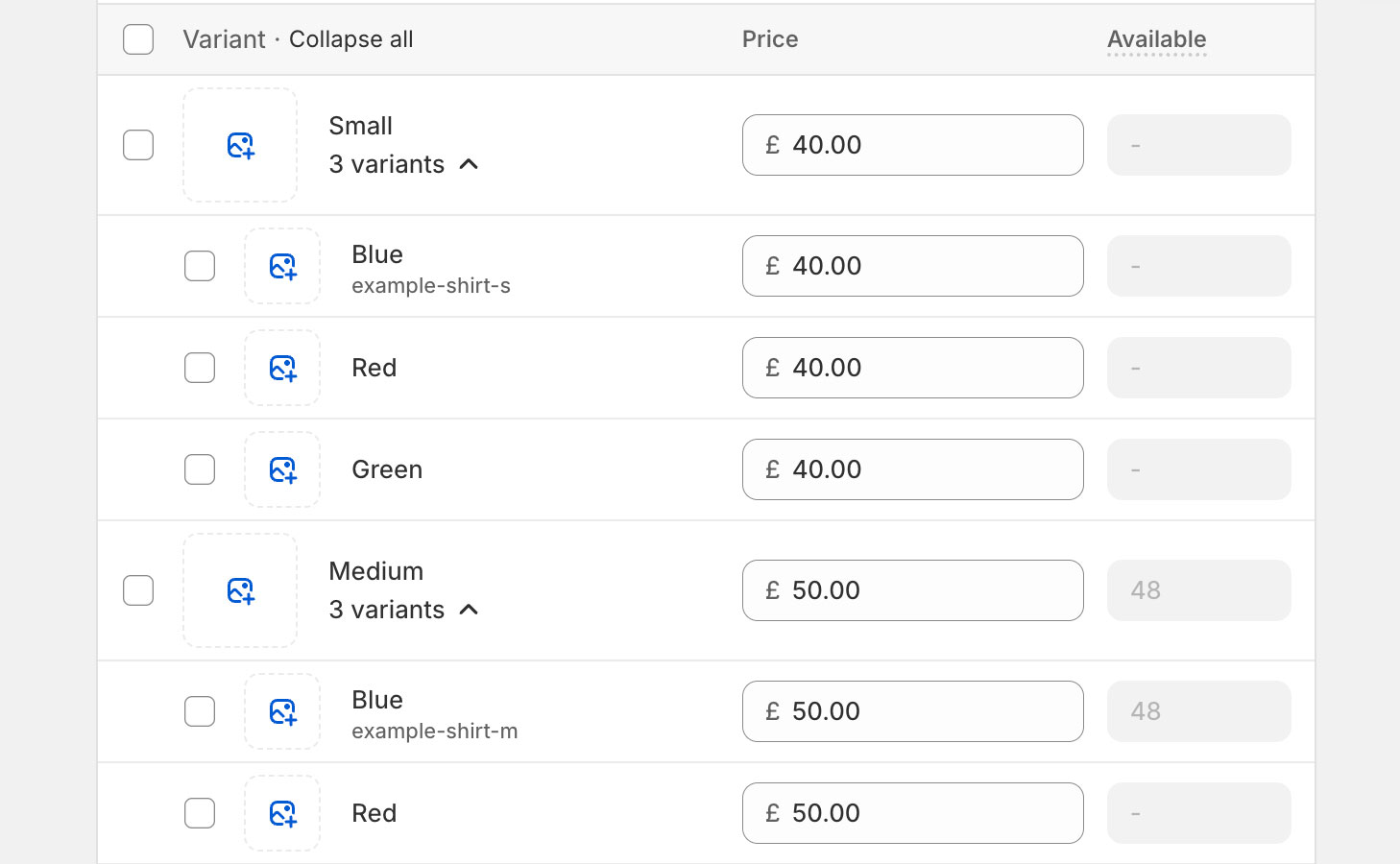
- Prices are reversed. WooCommerce has a regular price and a sale price. Shopify has a price and a compare-at price, which is the same two numbers the other way round. Map them wrongly and every product shows a discount that doesn’t exist.
- Shortcodes turn into text. Shopify doesn’t know what a WordPress shortcode is, so it imports the characters. Your product page then shows square brackets where the old site showed a styled table. It looks fine in the CSV, which is why people miss it.
- SKUs have to be unique. WooCommerce lets you leave them blank or reuse them, and Shopify doesn’t. Blank SKUs import without complaint and then make your stock unmanageable.
- You only get three product options. Shopify allows three options per product and up to 2,048 variants. So if a product uses size, color, material and length, there’s no native home for it.
- Collections are flat. WooCommerce categories sit inside each other, Shopify collections don’t, and smart collections run on rules instead. Your category tree won’t survive the move on its own.
- Custom fields stay behind. ACF and Meta Box fields are WordPress post meta, and Shopify metafields are a separate system. Nothing maps them for you.
- Grouped and affiliate products have no equivalent. Decide what you want them to become before an importer decides for you.
Clean the Catalog Before You Move It
Shopify’s own WooCommerce migration guide consists of 19 steps. Step 2 is the export, step 4 is the import, and step 3 is “Edit product export data”. That’s weird, as Shopify tells you to clean the catalog in the middle of the process, and then says nothing about what to clean 🙃. Every other guide does the same thing.
Here’s what I’d do, in the order that saves the most pain:
- Fill in the blank SKUs and sort out the duplicates. Shopify treats SKUs as real identifiers, so this one isn’t optional.
- Go through your prices and bulk update the ones that are wrong, including sale prices that expired years ago and never got cleared.
- Decide your compare-at price logic now, because working it out after 3,000 products have imported is much worse.
- Strip the shortcodes and page builder markup out of your descriptions.
- Fill in the fields you’ve always ignored: Weights, dimensions, brand and short description. Shopify needs the weights for shipping rates.
- Delete the products that haven’t sold in two years. You don’t want to pay to move them and then still have to look at them every day.
Doing all this in the WordPress admin would take forever, so you need a quick way to clean up your product data. That’s why we built Setary. It loads your whole catalog into a spreadsheet, so you can sort by empty SKU, fix the column and move on.
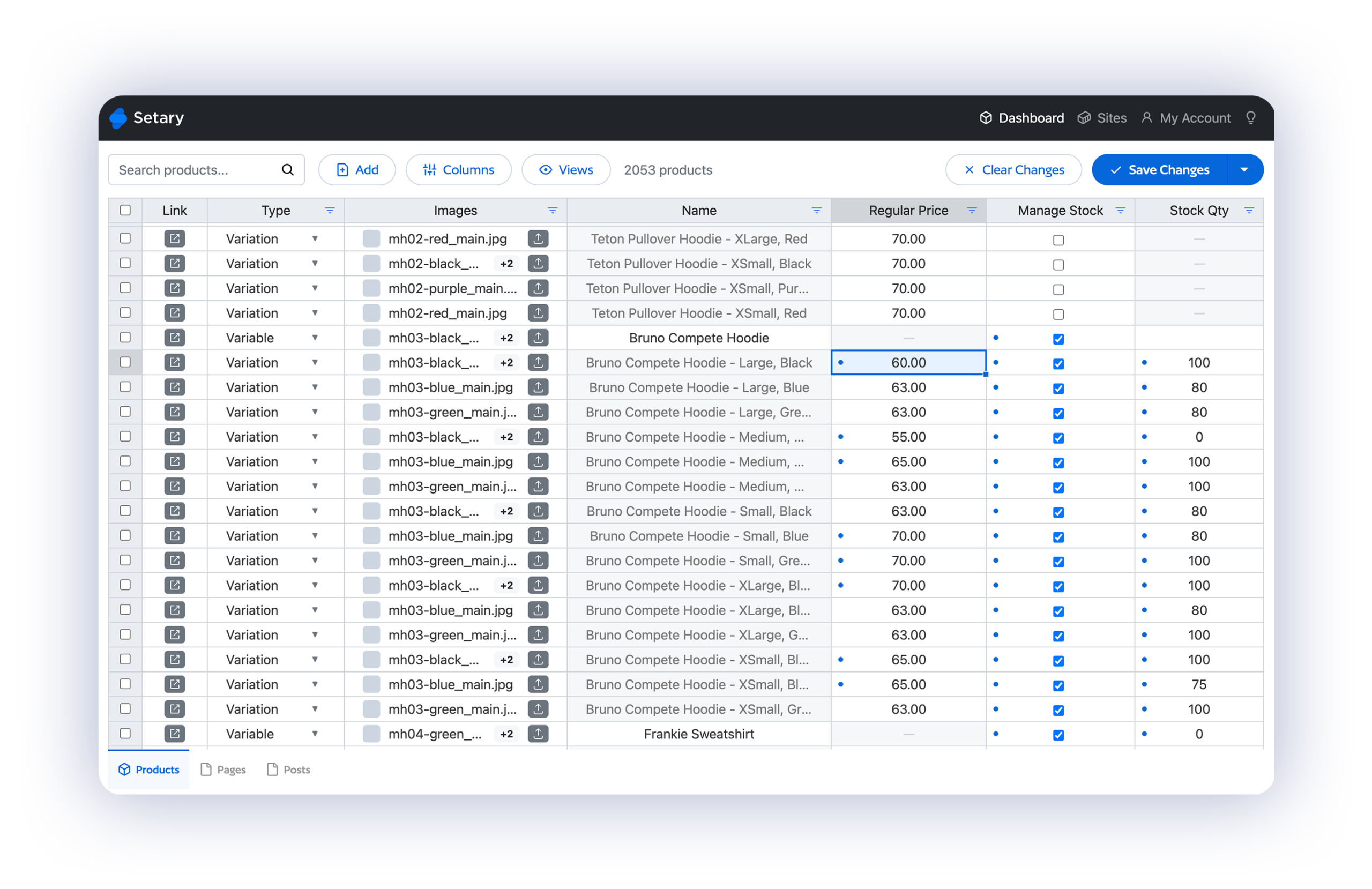
Bulk editing WooCommerce products this way covers pricing, stock, names, SKUs, attributes and descriptions, and it shows variable products next to all their variations instead of hiding them a click away.
Choosing a Migration Tool
Now for the transfer itself: There are four sensible routes, and the right one depends mostly on how much you need to bring across.
Shopify’s Store Migration app is free, first-party and currently in early access. For a small catalog of simple products it’s the right answer, and I wouldn’t pay for a tool you don’t need. Read what it does first, though, because it imports products and nothing else:
- Customers are separate, and manual. You export them from WooCommerce and import the resulting WooCustomerDownload.csv yourself.
- Order history needs a third-party app. Shopify’s guide says so directly.
- Reviews can’t come across at all. In Shopify’s words, “You can’t export or migrate reviews from WooCommerce to Shopify.”
- Blog posts and pages aren’t covered by the guide anywhere.
Ablestar’s WooCommerce Importer covers much more ground, and pricing starts at $4 for 50 products with the first 20 free. It moves products, orders, customer accounts and reviews, and it builds your URL redirects for you, which is worth real money on its own.
Matrixify advertises migration from “WooCommerce, WordPress, Magento, BigCommerce, Lightspeed, others”, and it’s strong if you’re comfortable working in spreadsheets. Be clear about what that means, though. It’s a one-way import into Shopify, and Matrixify doesn’t edit your WooCommerce store at all.
Cart2Cart and LitExtension sit somewhere between a tool and a service, and suit you if you’d rather hand the fiddly parts to someone else. An agency only makes sense once you’re dealing with a big catalog, heavy customization, or subscriptions and bundles that need rebuilding anyway.
Whichever route you pick, give yourself proper time for importing your CSV into Shopify, and check the file against Shopify’s format before you upload it.
What You’ll Need to Fix After the Import
No import comes through perfectly, so plan for a tidy-up afterwards. Some of what arrives will be technically correct and practically wrong, and it’s the same short list almost every time.
- Compare-at prices sitting in the wrong field across the whole catalog.
- Product titles still following the old store’s naming convention.
- Variant options called “Attribute 1” and “Attribute 2” instead of Size and Color.
- Descriptions with leftover markup that nobody spotted in the CSV.
- Collections that need building from scratch, because the category tree didn’t carry across.
- Empty metafields where your custom fields used to be.
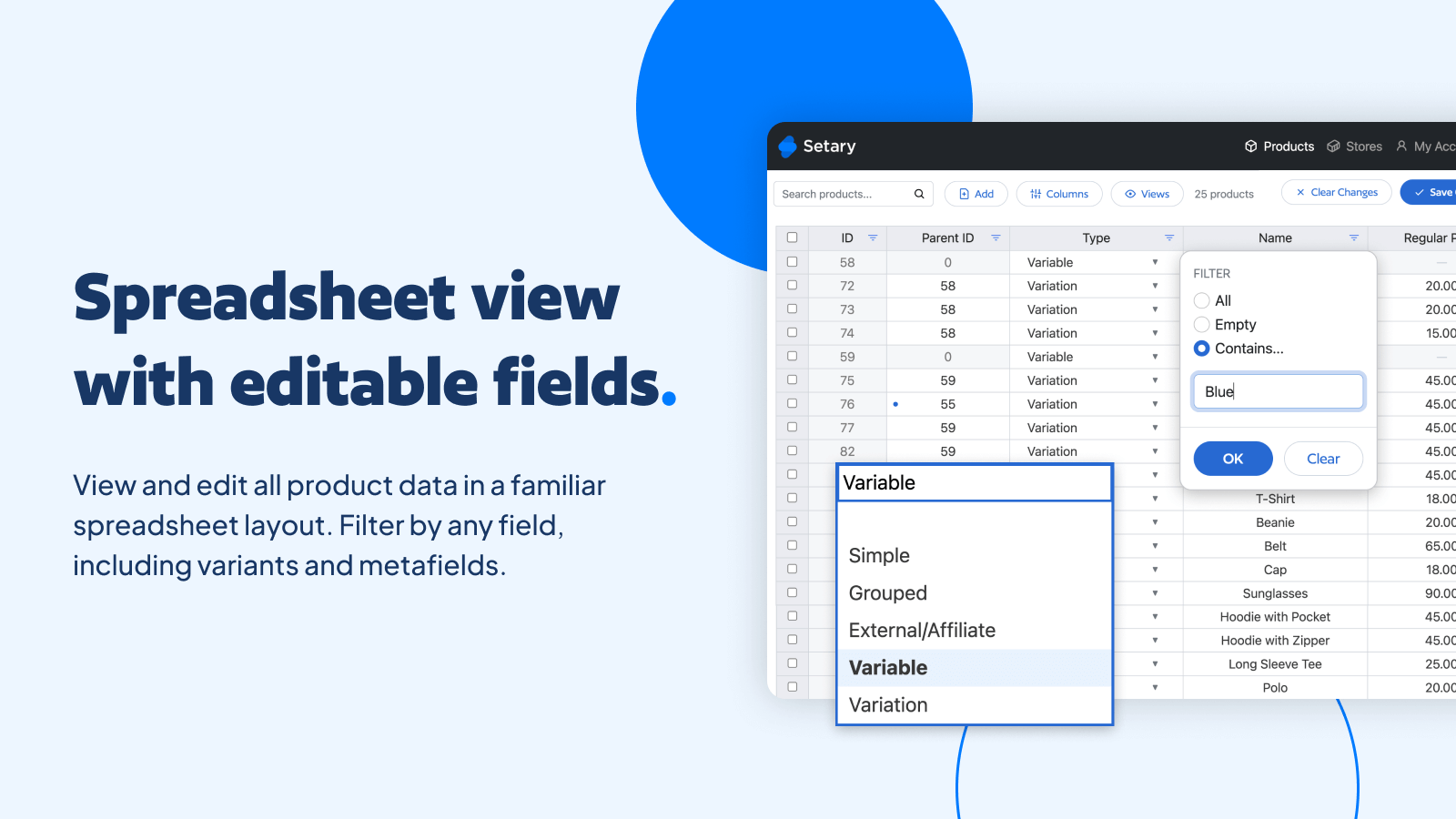
This is bulk editing on a brand new store, and you’ve just done the same thing on the WooCommerce side. Bulk editing your Shopify catalog in Setary covers titles, descriptions, prices, inventory, tags, collections and metafields. Editing variants in bulk covers variant pricing, inventory, SKUs and options, which is where most of the post-import mess sits.
Redirects and the Rest of the Store
Your products are only part of the move, and the rest of it needs its own plan.
Redirects matter most. Shopify covers them at step 19 of its guide, and step 18 warns that after you transfer your domain, “your old links to specific pages likely won’t load for customers”. On the free route you build them by hand, one redirect at a time. Ablestar’s importer builds them for you, which is often the reason to pay for it.
After that, work through the parts nobody remembers until they’re gone:
- Blog posts and pages need moving or rebuilding. Shopify’s migration guide doesn’t mention them.
- Reviews live in a plugin on WooCommerce and an app on Shopify, so they need deliberate exporting and importing.
- Customer passwords don’t transfer between platforms, so your customers will have to reset them. Warn them first.
Two last things before you switch the domain over. Keep the WooCommerce store live until the new checkout has taken a real test order with a real card. Then submit your new sitemap to Search Console as soon as you launch.
Moving From Shopify to WooCommerce
Plenty of stores go this way, usually for more control over hosting, checkout or content. Your catalog still needs cleaning either side of the transfer, but the details change:
- The compare-at price inversion runs backwards, so Shopify’s price and compare-at price become WooCommerce’s regular price and sale price.
- Collections, smart collections included, have to be rebuilt as categories and tags. WooCommerce has no equivalent of a rule-driven collection.
- Metafields written by Shopify apps often hold data the store depends on, and nobody thinks about them until the app is gone.
- Shopify product handles become WooCommerce slugs, which is where your redirect map comes from. Export the handles before you cancel anything.
For tools, WooCommerce sells its own Migrate & Import Shopify to WooCommerce extension at $79, there’s a free S2W plugin on wordpress.org, and Cart2Cart handles this direction too. If you’re working from files, export your Shopify products first, then take care over importing variable products into WooCommerce, because keeping parent products tied to their variations is the part that usually breaks.
You clean the catalog exactly the same way going in this direction, and Setary works on the WooCommerce side too, so it’s the same spreadsheet either way.
The Weeks When Both Stores Are Live
Nobody flips a store over in an afternoon. For a week or a month you’ll have two catalogs, and depending on how you handle the cutover, both of them might be selling. A price change has to be made twice, a stock correction has to be made twice, and a typo in a product title has to be fixed twice.
That’s also where a Shopify-only tool stops helping. Ablestar, Hextom, Matrixify, Mixtable and QuickEdit are all Shopify apps, and none of them can see your WooCommerce store. Setary edits both platforms from one login, so you can run the overlap through one tool instead of two.
What Setary Doesn’t Do
Setary is a bulk editor, not a migration tool. It won’t move your products from one platform to the other, and nothing on this page should suggest otherwise. For the transfer itself, use one of the options above.
I also want to be clear about where your data goes, because you’re at your most exposed mid-migration. Setary doesn’t store your product data. We read your products live through the platform API, show them to you in the spreadsheet, and push your changes back to the live store once you’ve reviewed and approved them. The changes and the product data stay with you.
On safety nets: Setary allows you to preview and undo changes before you make them live, but there is no rollback after you sync your edits with your live store. Several Shopify bulk editors sell a rollback window of 30 to 180 days after the fact, and we don’t have that, so check your changes in the preview.
Two other gaps worth knowing. Setary doesn’t do scheduled or recurring edits. And it edits products and variants, so you can’t bulk edit orders, customers or collections as objects.
Where to Start
Before you start a WooCommerce to Shopify migration, audit the catalog. Do it before you compare a single migration tool. Sort your products by empty SKU, count how many sale prices are still sitting there from a campaign you’ve forgotten, and open five descriptions at random to see how much page builder markup you’re carrying. That hour tells you how much work you’re really taking on.
Setary comes with a 7 day free trial on both platforms. The Shopify app is $9.99 a month or $99 a year, and WooCommerce and WordPress plans start at $144 a year for a single site. If you’re running stores on both platforms you’ll need a subscription for each, because Shopify bills every app per store installation.
Bulk edit anything in WordPress, WooCommerce and Shopify
Try our demo now and discover how you could save thousands of hours managing your site.
or try the demo