
Your product launch is in three days, and you need to add care instructions to 800 products. Or maybe you’re migrating to Shopify’s Online Store 2.0 filtering system and need to populate metafields that previously lived as tags. Either way, clicking through products one by one isn’t an option.
Bulk editing Shopify metafields should be straightforward, but it rarely feels that way. The native tools work for small batches, CSV imports carry serious risks, and the wrong approach can wipe out months of product data in seconds.
This guide helps you match the right method to your specific situation. You’ll learn which metafield types cause problems, when to use native tools versus specialized apps like Setary, and how to avoid the disasters that catch merchants off guard.
Quick Primer: Metafield Types That Affect Your Bulk Editing Strategy
Shopify metafields are custom data fields that extend your products beyond standard attributes. Before diving into bulk editing methods, understanding your metafield types will save you significant frustration. The type of metafield you’re working with directly determines which bulk editing approach will work safely.

Simple vs Complex Metafield Types
Simple metafield types include single line text, numbers, dates, and basic measurements. These behave predictably during bulk operations. When you update a text metafield, the new value replaces the old one cleanly.
List-type metafields introduce complexity. These include multi-select options, lists of text values, and product references. When a product has multiple materials listed (cotton, polyester, spandex), bulk editing becomes trickier. The question becomes whether you want to replace the entire list or add to it.

Reference metafields link to other Shopify objects like products, collections, or pages. These require precise formatting, and mistakes can break the connections entirely.
Rich text and JSON metafields need special handling. The formatting must remain intact during bulk operations, or you’ll end up with broken layouts on your product pages.
Why This Matters for Your Approach
Simple metafields work fine with Shopify’s native bulk editor for small batches. You can update single line text or number values across fifty products without much worry. The straightforward replacement behavior is predictable and easy to verify.
List-type metafields are where most bulk editing disasters happen. The native editor often replaces entire lists instead of appending to them. If you drag a value down to apply it to multiple products, you might overwrite unique existing data. This single limitation drives many merchants toward specialized tools that handle append operations correctly.
Reference metafields often require tools with built-in pickers. Manually entering product IDs in the correct format is tedious and error-prone. Apps like Setary display these as searchable dropdowns instead of raw ID fields, making the process faster and safer.
Before choosing a bulk editing method, audit your metafield definitions in the metafields Settings. Know which types you’re working with and plan accordingly.
Choosing the Right Bulk Editing Method for Your Situation
Different scenarios call for different tools. Rather than defaulting to whatever method you’ve used before, match your approach to the specific task at hand.
Decision Framework: Matching Your Method to Your Task
Here are some factors to consider:
- For updating fewer than fifty products with simple metafields, use Shopify’s native bulk editor. It’s free, requires no setup, and handles straightforward text and number updates without issues.
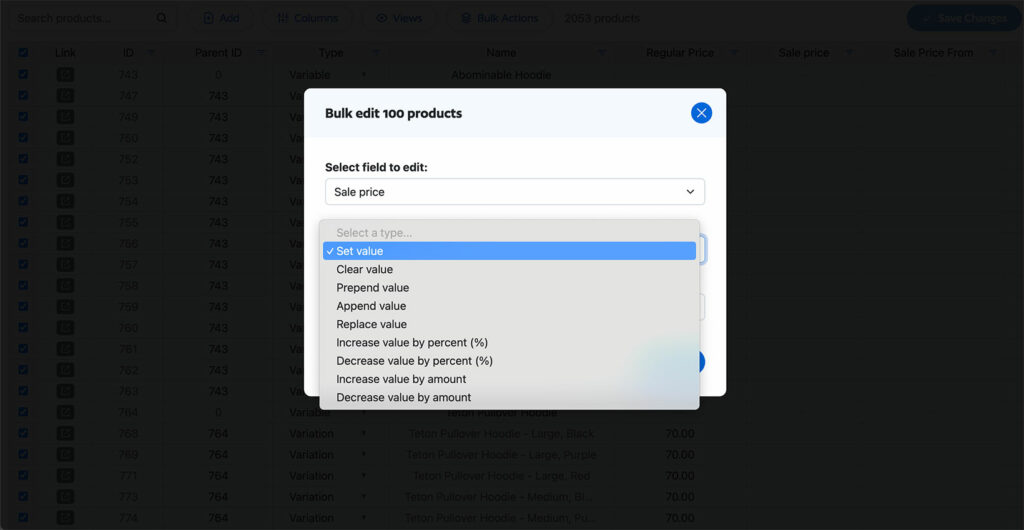
- When adding the same value to hundreds of products, a specialized app like Setary becomes worthwhile. Bulk actions apply changes across your entire filtered selection without page-by-page workflow.
- If you need unique values for each product (different care instructions, different specifications), both CSV imports and Setary work well. However, Setary connects directly to your store while CSV requires the export-edit-import cycle.
- List-type metafields that need appending rather than replacing require Setary or similar tools. The native editor lacks true append functionality and will overwrite existing values.
- Complex reference metafields benefit from apps with built-in pickers. Searching for products by name beats copying and pasting Shopify’s internal product IDs manually.
- One-time migrations with massive data transformation might justify CSV imports despite their risks. When you have technical expertise and solid backups, CSV gives you maximum flexibility.
The Real Trade-offs
The native Shopify bulk editor costs nothing but limits scale and lacks safety features. Changes to your metafields and other product data apply immediately with no preview and no undo.
CSV imports offer unlimited power but unlimited risk. One wrong column header or blank cell interpreted as “delete this value” can corrupt data across your entire catalog. There’s no validation before import.
Third-party apps require investment but provide the safest path for regular bulk operations. Setary specifically addresses the pain points of Shopify metafield management with features built around how merchants actually work. I’ll tell you more about this later, but first let’s go deeper into the bulk editor that comes with Shopify itself.
Using Shopify’s Native Bulk Editor for Metafields
Shopify’s built-in bulk editor handles basic metafield updates adequately for smaller stores. Understanding its workflow and limitations helps you know when it’s sufficient and when to reach for more flexible tools like Setary.
Step-by-Step: Native Metafield Bulk Editing
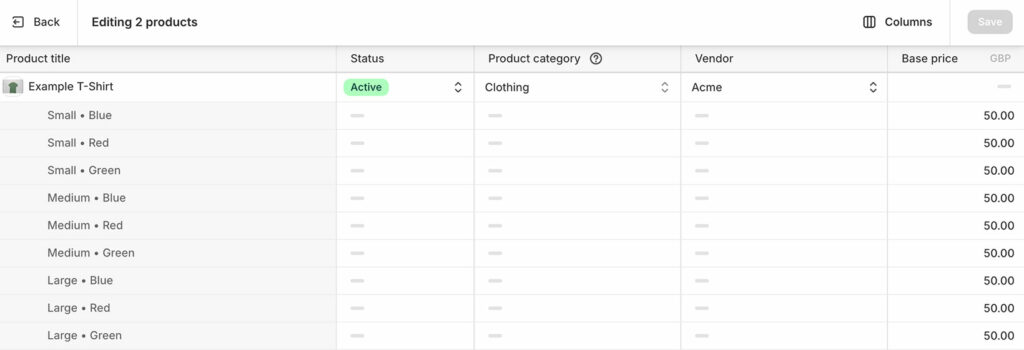
- Start from your Products page in Shopify admin. Use filters to narrow your selection if needed, then check the boxes next to products you want to edit. Click the “Bulk edit” button at the top.
- The bulk editor opens with your selected products displayed as rows. By default, you’ll see standard product fields. To add metafield columns, click the “Columns” button in the upper right.
- Scroll through the column options to find your metafield definitions, organized by namespace. Check the metafields you want to edit and they’ll appear as new columns.
- Click any cell to edit its value. For text metafields, simply type the new content. For list-type metafields, you may see a dropdown or text input depending on how the metafield was defined.
- When finished, click “Save” to apply all changes. Chrome and Firefox work most reliably with the bulk editor – some merchants report issues with Edge due to URL length limitations.
Know When to Stop
The native editor shows only fifty products per page. For larger selections, you’ll need to save, navigate to the next page, and continue editing. A five-hundred-product update means ten separate sessions.
Watch for browser slowdown as a warning sign. When scrolling becomes jerky or cells respond sluggishly, you’re approaching memory limits. Working in smaller batches prevents crashes that lose unsaved work.
The threshold where native editing becomes counterproductive is usually around one hundred products, or any time you’re working with list-type metafields. Beyond this point, a proper tool pays for itself quickly.
Remember that changes apply immediately with no undo capability. Once you click save, those modifications are live on your store.
The List-Type Metafield Trap
This deserves special emphasis because it catches so many merchants off guard. When you edit a list-type metafield for one product, adding a value works as expected. The new value joins the existing list.
But when you try to apply that same operation across multiple products using drag-fill or copy-paste, the behavior changes. Instead of adding your new value to each product’s existing list, the editor replaces the entire list with whatever you’re pasting.
Product A has materials: cotton, polyester. Product B has materials: wool, silk. You want to add “sustainable” to both. You type “sustainable” in Product A’s cell and drag it down to Product B. Now both products show only “sustainable” and you’ve lost the original material data. The native editor simply can’t handle this workflow safely.
Why CSV Imports Are Riskier Than They Seem
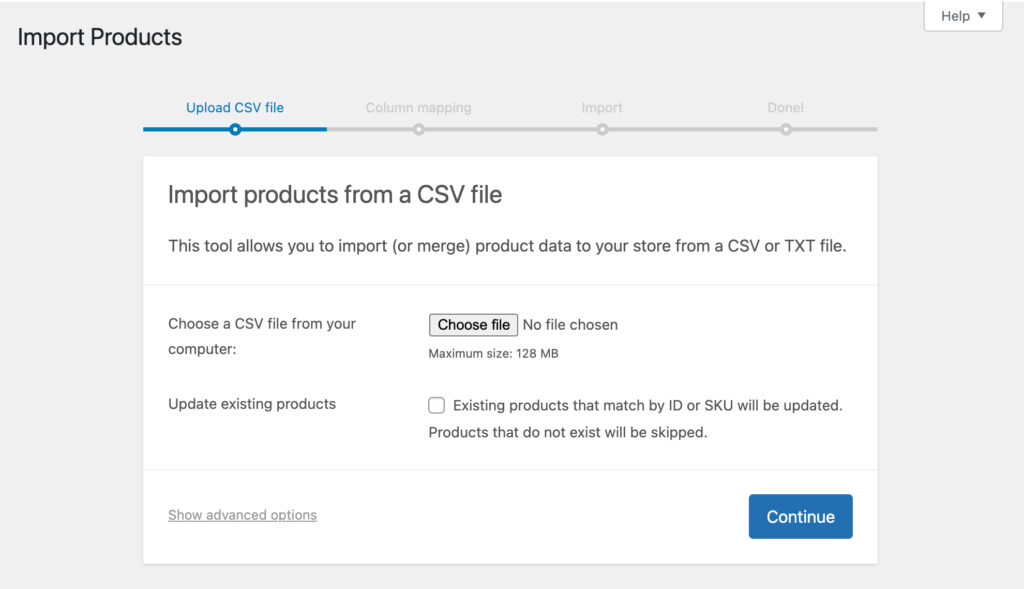
CSV imports seem powerful because they are. You can update unlimited products with complex transformations using familiar spreadsheet tools. But that power comes with proportional risk that many merchants underestimate until something breaks.
The Hidden Dangers
Blank cells don’t mean “skip this field” in Shopify CSV imports. They mean “delete whatever value exists.” Accidentally shift a column and dozens of products lose their data.
Column naming must follow exact Shopify conventions. Metafield columns need the format “Metafield: namespace.key [type]” with precise punctuation. A typo doesn’t cause an error – it creates a useless new column while your intended metafield stays unchanged.
There’s no validation before import. Shopify processes the file and applies changes without preview. Errors only surface after the damage is done.
JSON and list formatting have strict requirements. A missing bracket can corrupt data in ways that aren’t immediately obvious.
When CSV Might Still Make Sense
One-time large migrations with careful preparation can justify the CSV approach. When moving data from another platform or doing major restructuring that you’ve tested on a development store, CSV handles the scale.
Technical users with robust backup processes can manage the risks. If you have expertise and a complete export to restore from, CSV becomes less scary.
But for regular bulk editing tasks, the risk-to-benefit ratio rarely makes sense.
A Safer Alternative
Purpose-built tools like Setary eliminate the file-based workflow entirely. No exports to manage, no column formatting to perfect, no imports to hold your breath through. Your changes happen in a live interface connected directly to your Shopify store through the API.
When you bulk edit Shopify metafields in Setary, you see your actual product data in real time. Changes preview before saving. Mistakes can be undone. Because of all this, the anxiety of CSV imports simply doesn’t exist.
Hassle-Free Bulk Editing with Setary
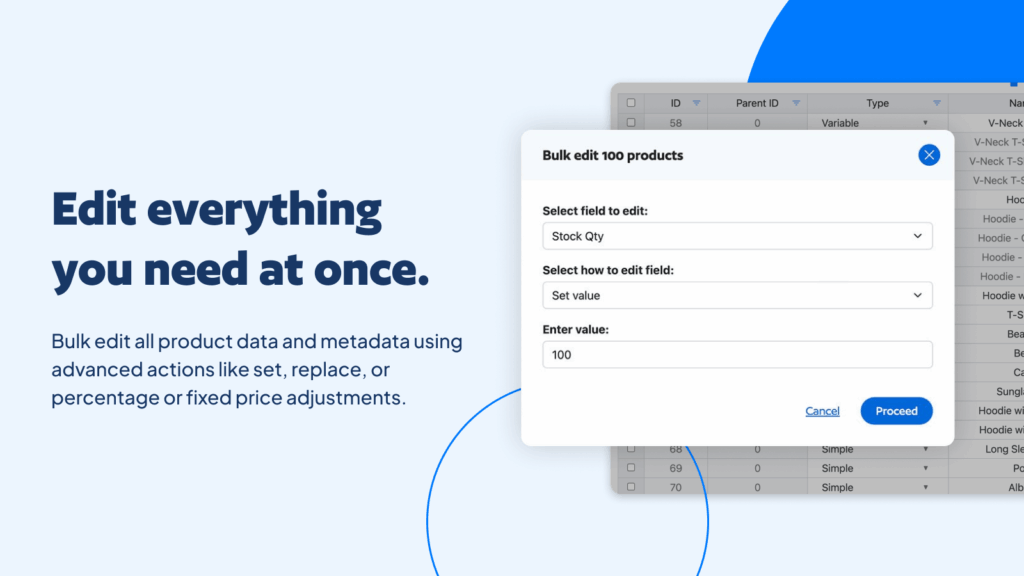
Setary takes the spreadsheet concept that makes CSV editing appealing and removes everything dangerous. You get cell-by-cell control over your product data through a live connection to your store, with bulk edit actions for metafields plus safety features that prevent disasters.
Why Setary Eliminates the Hassle
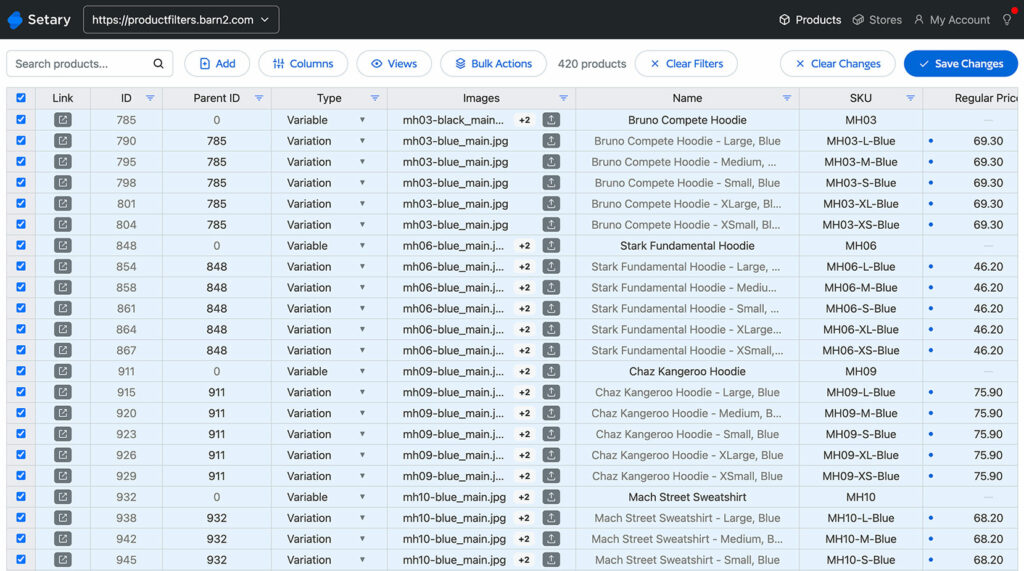
The interface looks like Excel or Google Sheets, displaying your products and metafields as rows and columns. But unlike a CSV file, this spreadsheet connects directly to Shopify through the Admin API. Changes sync without any export-import cycle.
Setup takes minutes. Install the Setary app in the Shopify App Store, authorize the connection, and Setary pulls your entire catalog including all metafield definitions.
The critical difference for metafield editing is having true append operations. When you need to add values to list-type metafields, Setary adds them without destroying existing data.
Before applying any bulk metafield changes to your live store, you can preview exactly what will change. Modified cells are highlighted with a blue dot so you can review the changes at a glance. If something looks wrong, then you can easily redo or clear them before any damage occurs.
Common Bulk Metafield Tasks Made Simple
Adding the same value to multiple products: Filter to select the products you need, choose the bulk action for your target metafield, enter the value, and apply. For list-type metafields, you can specify whether to append or replace.
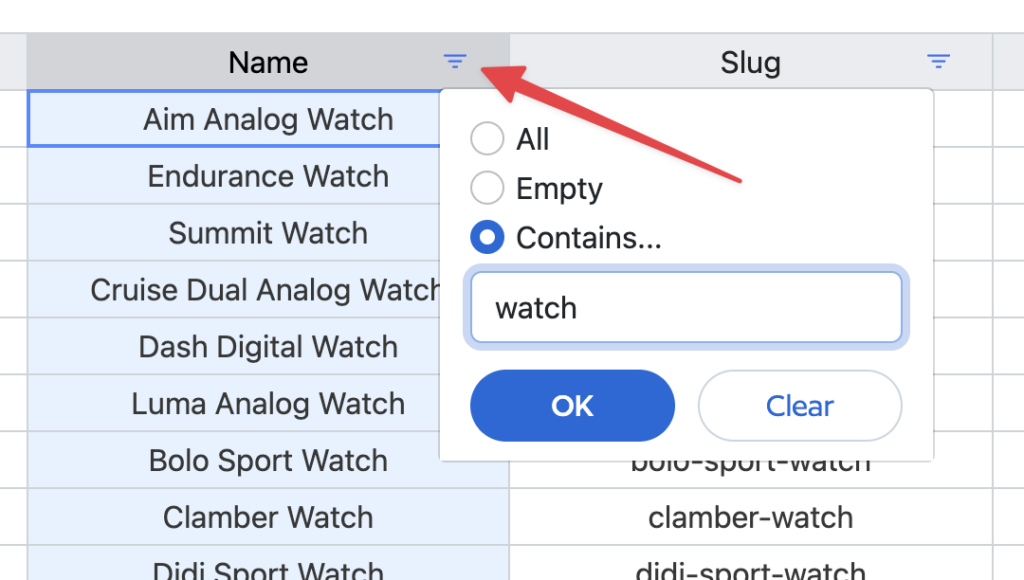
Updating unique values across products: Click cells and type, just like Excel. Copy and paste from external spreadsheets works directly. Find and replace handles text metafields efficiently when changing specific terms across your catalog.
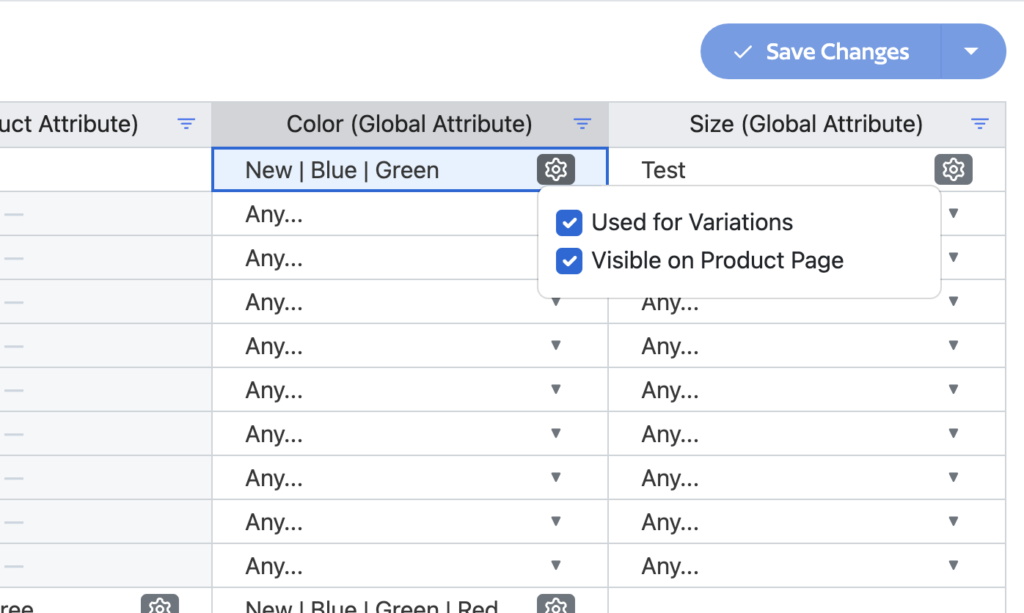
Appending to list-type metafields: Select products with existing material lists, choose append instead of replace, add your new value, and each product gains the new entry while keeping its unique existing data.
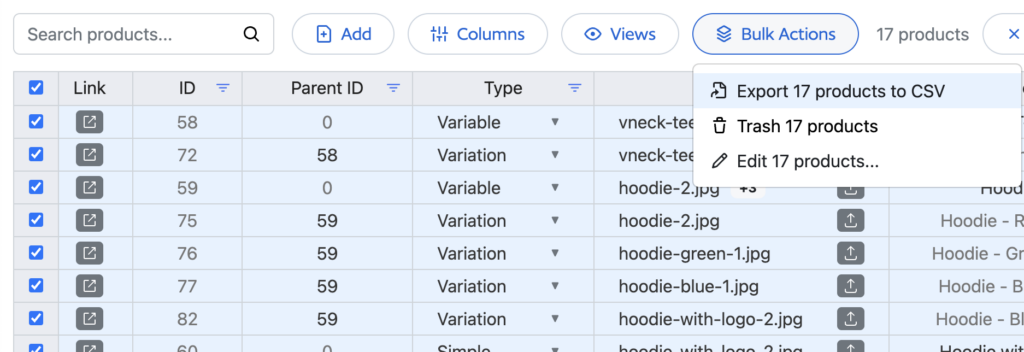
Working with variant-level metafields: Setary displays each variant as its own row. Filter by variant attributes to find specific sizes or colors across your catalog, then apply changes only to the filtered results.
Time-Saving Features
As well as letting you edit all product data including metafields, Setary’s advanced features are designed to save you even more time:
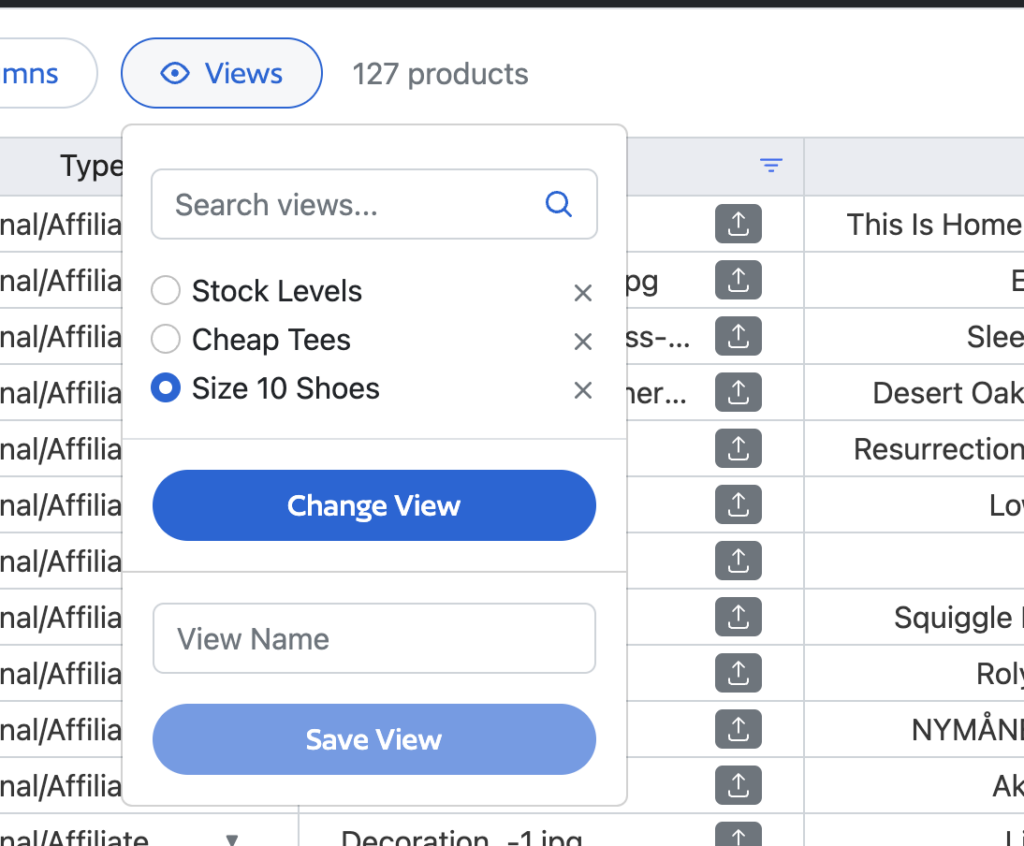
- Saved views let you store filter combinations for repeated workflows. If you regularly update metafields for products in specific collections, save that view and reload it instantly next time.
- Column customization keeps the interface focused. Hide columns you don’t need, arrange the remaining ones in logical order, and work without scrolling past irrelevant data.
- Keyboard shortcuts follow spreadsheet conventions. Ctrl+C, Ctrl+V, and Ctrl+Z work as expected. Tab moves between cells.
- The filter-then-edit workflow ensures precision. Build a filter showing exactly the products that need changes, verify the selection, then apply your bulk action only to those filtered results.
- If you regularly use specific column combinations, then save each one as a “View” so that you can quickly re-load it later.
Avoiding Common Bulk Metafield Disasters
Even with good tools, bulk editing carries inherent risk. A few precautions and awareness of common mistakes can save you from learning expensive lessons the hard way.
Before You Start: The Backup Rule
Export your current metafield values before any major bulk operation. Shopify maintains a thirty-day object history for individual products, but recovering hundreds of products manually through that system takes forever. A CSV export gives you a restoration point that’s actually usable.
Test your intended changes on a small batch first. Select five or ten products representing different scenarios in your catalog, apply your bulk edit, and verify the results look correct on the actual product pages. This catches formatting errors, unexpected data transformations, and logic mistakes before they scale across your entire store.
If you’re using Setary, use the preview functionality to review highlighted changes before pushing to live. If using native tools or CSV, triple-check everything before clicking save or import.
The Five Most Common Mistakes
Overwriting list values instead of appending: This tops the list because it’s easy to do accidentally and devastating when it happens. Always verify whether your tool offers true append functionality for list-type metafields. If it doesn’t, find a different approach or accept that you’ll be replacing entire lists.
Editing during peak traffic hours: Large bulk operations through the API can briefly affect store performance. A massive metafield update during your busiest shopping hours might slow page loads slightly. Schedule major updates for early morning or late evening when traffic is lower and you have time to verify results.
Entering incorrect data types: A metafield defined as a number won’t accept text. A date metafield needs dates in the expected format. Mismatched data types can fail silently, leaving the metafield unchanged while you assume it updated. Check your metafield definitions in Settings to confirm you’re entering compatible values.
Forgetting variant metafields exist separately: Product metafields and variant metafields are distinct. Updating the product-level “materials” metafield doesn’t touch any variant-level metafields. If you need to bulk edit both, plan for two separate operations targeting the appropriate level.
Not defining metafields before bulk editing: Metafields must be properly defined in the Shopify Settings before they appear as options in bulk editing tools. If your metafield doesn’t show up in the column picker, check that the definition exists with the correct type and access settings configured. You can do this under Shopify > Settings > Metafields and metaobjects.
Real Workflow Examples
Theory matters, but seeing how these methods apply to actual scenarios makes the decision clearer. Here are three common situations and how to handle them efficiently.
Scenario 1: Migrating from Tags to Metafields for Filtering
Shopify’s Online Store 2.0 uses metafields for storefront filtering rather than the old tag-based system. If you’ve been using product tags like “material-cotton” or “style-casual” for years, migration requires bulk converting that data.
Start by creating your new metafield definitions in Settings. For each filter you want, define the corresponding metafield with appropriate type.
In Setary, you can view both your existing tags column and your new metafield columns side by side. Filter products by tag to find all items tagged “material-cotton.” Select those products, use the bulk action to set the material metafield to “cotton,” and apply. Repeat for each tag value you need to migrate.
The process is systematic but straightforward. Work through your tag groups methodically, converting each one to its metafield equivalent. The visibility of both old and new data in the same interface prevents confusion about which products have been migrated.
Scenario 2: Adding Care Instructions Before a Product Launch
You’re launching a new apparel line next week with five hundred products across ten categories. Each category has different care requirements, and every product needs its care instruction metafield populated before going live.
Filter by product type or collection to isolate one category at a time. For all products in the “delicates” category, select them and apply the appropriate care instructions through a bulk action. Move to “outerwear” and apply that category’s instructions. Continue through each category systematically.
Because you’re applying category-specific text rather than one universal value, the filter-then-edit workflow keeps things organized. You never accidentally apply delicate care instructions to outerwear because your filter ensures you’re only seeing and editing the intended products.
Review a sample from each category on your actual storefront before launch to confirm the metafields display correctly. Catching a formatting issue on one test product is much easier than fixing it across fifty after customers start complaining.
Scenario 3: Quarterly SEO Metafield Updates
Your store uses custom metafields to hold SEO-optimized content that changes seasonally. Every quarter, you update these fields across your seasonal collections to target current search trends and promotional themes.
Create saved views in Setary for each collection you regularly update. Your “Summer Collection SEO” view filters to summer products and shows only the SEO-related metafield columns. Your “Holiday Collection SEO” view does the same for holiday items.
When update time arrives, load the relevant saved view. Your workspace immediately focuses on exactly the products and fields you need to edit. Make your updates across the filtered selection, review the preview, and save. Move to the next collection view and repeat.
The saved views eliminate the quarterly ritual of rebuilding filters and remembering which columns matter. Your update workflow becomes: load view, make changes, save, load next view. What previously took most of a day compresses into a focused working session.
Take Control of Your Shopify Metafields
Bulk editing Shopify metafields doesn’t need to be stressful.Choose the right method for your specific situation. This means using native tools for small updates, careful CSV work for one-time technical migrations, and purpose-built apps like Setary for regular catalog management.
For anything involving list metafields, large catalogs, or regular bulk updates, Setary eliminates the hassle. The spreadsheet interface feels familiar, and the live connection removes import-export friction. The short time you’ll spend setting up proper bulk editing workflows with Setary will pay dividends every time you need to update your catalog.
Start a free seven-day trial with Setary and experience how simple bulk editing Shopify metafields can actually be.
Bulk edit anything in WordPress, WooCommerce and Shopify
Try our demo now and discover how you could save thousands of hours managing your site.
or try the demo