
This guide explains when Shopify to Google Sheets integration makes sense for product management, where it falls short, and why dedicated spreadsheet tools often work better for bulk editing your catalog.
Many merchants search for ways to connect Shopify to Google Sheets because they want the familiar spreadsheet experience for managing products. The appeal makes sense. Spreadsheets feel comfortable, and Google Sheets offers powerful formulas and collaboration features that Shopify’s native tools lack. After spending fifteen minutes trying to update prices through Shopify’s admin, the idea of just editing cells in a spreadsheet sounds like paradise 😅
But here’s what I’ve noticed: most merchants aren’t actually married to Google Sheets specifically. What they really want is an efficient way to edit products in a spreadsheet format. They’ve used Excel or Google Sheets for years, they know the keyboard shortcuts, and they can work ten times faster in a grid than in Shopify’s interface. The distinction matters because it opens up solutions that work far better than forcing two platforms to communicate.
- Google Sheets integration adds complexity that most merchants don’t actually need.
- Two-way sync between platforms creates reliability problems.
- Purpose-built spreadsheet editors solve the real problem without the headaches.
This article takes a different approach than most guides on this topic. Instead of walking through every possible sync method, I’ll help you understand when Google Sheets integration genuinely makes sense for product management, where it creates more problems than it solves, and what alternatives might serve you better. If you want a detailed breakdown of connection methods, check out Barn2’s complete guide to Shopify and Google Sheets sync options.
Why Merchants Want Google Sheets for Product Management
A Shopify to Google Sheets integration allows merchants to export product and order data into spreadsheets for viewing, analysis, and sometimes editing. The appeal runs deeper than simple familiarity with the interface.
Spreadsheets offer capabilities that Shopify’s admin simply doesn’t provide. You can create formulas to calculate markup percentages automatically. You can use conditional formatting to highlight products below a certain margin. VLOOKUP functions let you cross-reference supplier data with your catalog. These are genuinely useful features for running a store.
For order management, your colleagues without access to the Shopify admin can view the spreadsheet and process the order.
The collaboration angle matters too. Google Sheets makes it easy to share product data with team members, suppliers, or external partners. Everyone sees updates in real time, and you can control exactly who has edit access versus view-only permissions. Try doing that with Shopify’s native bulk editor.
What types of Shopify store need Google Sheets sync
When I talk to merchants about why they want this integration, the use cases typically fall into a few categories:
Bulk price updates top the list. Updating hundreds of products for a flash sale through Shopify’s interface takes hours. A spreadsheet lets you apply formulas and make changes in minutes.
Inventory management comes up constantly. After a stocktake, merchants want to paste updated quantities into a spreadsheet rather than clicking through each product individually. The desire to bulk edit inventory in Shopify drives many Google Sheets searches.
SEO optimization at scale requires editing meta titles, descriptions, and other fields across the entire catalog. Spreadsheets make it easy to ensure consistency and apply templates.
Product data cleanup is another driver. Years of rushed updates leave catalogs messy. Spreadsheets provide the sorting and filtering needed to identify and fix inconsistencies.
Variant management frustrates everyone who’s tried Shopify’s native tools. When a product has multiple sizes, colors, and materials, managing all those combinations requires better visibility than the admin provides.
These are all legitimate needs. The question isn’t whether spreadsheet-style editing is valuable – it absolutely is. The question is whether Google Sheets specifically is the right tool for the job, or whether you’re adding unnecessary complexity to solve a simpler problem.
How Shopify to Google Sheets Integration Actually Works
Shopify to Google Sheets connections typically work through manual CSV exports, automation tools like Shopify Flow, or third-party connector apps. Each method has different capabilities and limitations that matter for product management specifically.
Manual CSV Export
The simplest approach is manual CSV export. You download your products from Shopify, open the file in Google Sheets, and work with it there. This works fine for one-time analysis or backups, but it creates a snapshot that’s immediately outdated. Any formulas or formatting you add get destroyed when you import fresh data later.
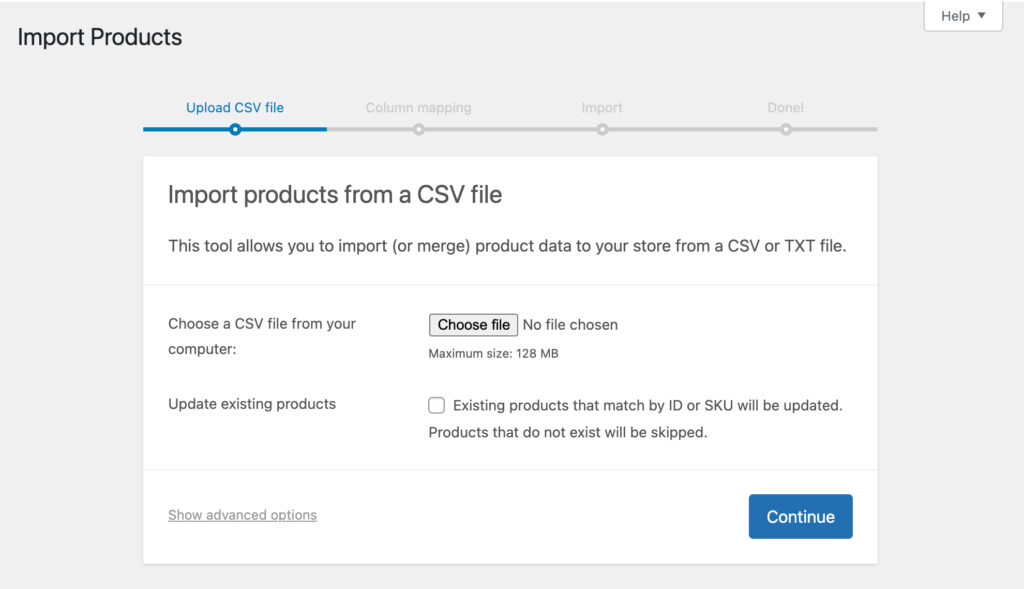
The workflow looks straightforward: export products, edit in Sheets, save as CSV, import back to Shopify. In practice, the import step is where things go wrong. One misplaced comma can break your entire file. Formatting that looked fine in Sheets gets mangled during conversion. The “overwrite existing products” checkbox is an all-or-nothing gamble.
Shopify Flow Automation
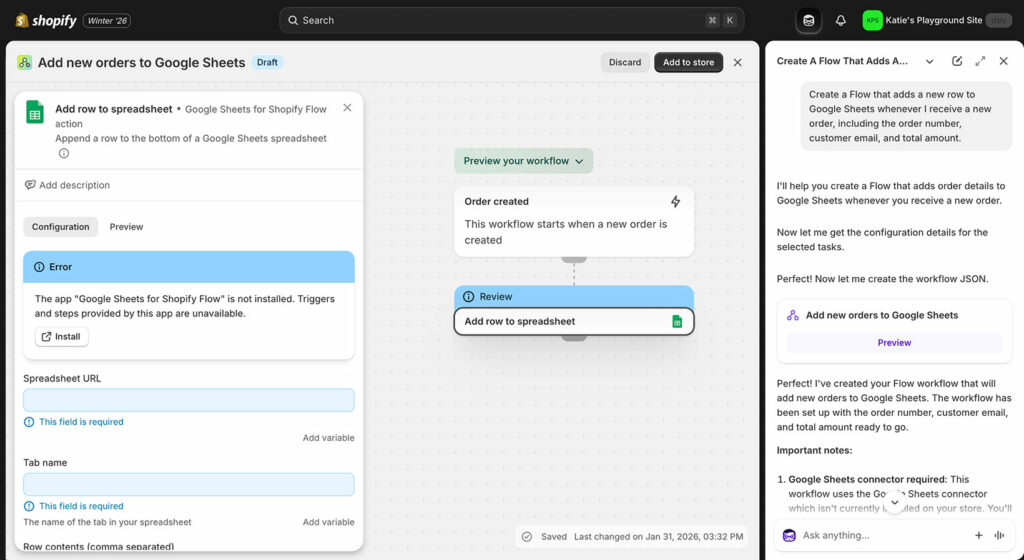
Shopify Flow offers free automation for stores on most plans. It can append new data to Google Sheets when specific events happen – a new order comes in, inventory drops below a threshold, or a product gets updated. The critical limitation is that Flow only adds new rows. It cannot update existing data or read anything back from your spreadsheet.
This makes Flow useful for logging and tracking, but not for product management. You can create a sheet that logs every inventory change, but you can’t edit that sheet and have changes flow back to Shopify.
Third-Party One-Way Connectors
Third-party connectors like Coupler.io, Coefficient and SyncWith automate the Shopify to Google Sheets export process on a schedule. You set them up once, and they pull fresh Shopify data into your spreadsheet daily or hourly. These tools work reliably for their intended purpose: getting data out of Shopify for reporting and analysis. However, most of them can’t push changes back to your store.
The pricing for these tools varies, but they generally charge based on sync frequency and data volume. For order management and reporting purposes, they’re cost-effective. For product management, they only solve half the problem.
Two-Way Sync Apps
Two-way sync apps like Mirach and eCommix attempt to solve this by letting you edit in Google Sheets and sync changes back to Shopify. This sounds ideal until you start using them. The sync process introduces delays, conflicts, and failure points that can make product management more frustrating rather than less.
For detailed setup instructions on each method, Barn2’s Shopify to Google Sheets guide walks through the steps. But before you invest time in setup, understand the limitations you’ll be working with.
The Limitations of Google Sheets for Product Management
Google Sheets has fundamental limitations for product management, including sync delays, conflict errors, and lack of native Shopify integration. Understanding these limitations before you invest time in setup can save you significant frustration.
Formula Destruction on Re-Import
This is the problem nobody mentions upfront. Say you export your products to Google Sheets and add some useful formulas. Maybe you create a column that calculates your margin based on cost and selling price. Or you add conditional formatting to highlight products that haven’t sold in 90 days. Everything works great.
Then you need fresh data. You export again from Shopify and import the new CSV. Now your formulas are gone, overwritten by raw values from the new export. Your =B2*1.25 markup calculation becomes a static 49.99. Your VLOOKUP references break entirely.
There are workarounds you can use (if you’re good at spreadsheets!). For example, you can keep formulas in separate columns that never get overwritten. You can use IMPORTRANGE to reference a separate import sheet. You can create template sheets with protected ranges. However, all of these add complexity and create new failure points. It’s because you’re trying to work around a fundamental mismatch between how Google Sheets works and what you’re trying to accomplish. It’s better to avoid the problem completely by using a different method.
Sync Failures and API Conflicts
Two-way sync tools sound like a dream scenario: edit in Google Sheets, and your changes appear in Shopify. In practice, however, this dream comes with regular nightmares.
Conflict resolution becomes a constant headache when multiple people edit simultaneously. Which version wins? If you update a price in Google Sheets while a team member updates the same product in Shopify, then one change gets lost. Most sync tools don’t have sophisticated merge logic – they just pick a winner.
The Shopify API and Google Sheets API speak different languages, and translation errors are inevitable. Rate limits cause sync delays, so the spreadsheet you’re editing might not reflect reality. You think you’re updating products that are in stock, but the inventory changed two hours ago and the sync hasn’t caught up. Field validation mismatches mean a value that looks fine in Sheets gets rejected by Shopify without a clear explanation.
You can easily spend more time troubleshooting sync failures than you save by automating in the first place.
Variant Management Is a Nightmare
Google Sheets handles flat, tabular data beautifully. Shopify variants create hierarchical data that doesn’t translate cleanly into rows and columns.
A single product with three sizes and four colors creates twelve variants. In Google Sheets, that means twelve rows that need to maintain their relationship to the parent product. Edit the wrong row and you’ve changed the wrong variant. The visual similarity between “Blue / Large” and “Blue / Medium” in a spreadsheet makes mistakes almost inevitable.
The problem compounds when you’re editing variants for multiple products. Your spreadsheet might have 100 rows, and figuring out which ones belong to which parent product requires scrolling and careful attention. Sort the spreadsheet by price to find your cheapest items, and suddenly variants are separated from their parents entirely. The hierarchical relationship that’s obvious in Shopify’s admin becomes invisible in flat spreadsheet rows.
Dedicated Shopify bulk editing tools understand this hierarchy and present variants in ways that prevent confusion. They can show parent products with expandable variant rows, or filter to show only variants of a specific product. Google Sheets just sees rows and doesn’t know the difference.
Missing Shopify-Specific Features
When you edit products directly in Shopify or through a dedicated app, you get safety nets. For example, preview shows what changes will look like before they go live.
But you can’t do this when editing Shopify products in Google Sheets. With Google Sheets sync, every saved change potentially affects your live store. The anxiety this creates makes the whole process slower and more stressful than it needs to be.
When Google Sheets Integration Does Make Sense
I know I’ve said some negative things about syncing Google Sheets to Shopify, but there are scenarios where it makes sense.
Specifically, Google Sheets integration works best for read-only reporting, one-time data migrations, and collaborative analysis rather than ongoing product management. The key is recognizing the difference between analyzing product data and managing it.
Reporting and analysis dashboards are perfect for one-way Shopify to Google Sheets sync. Pull your sales data, product performance metrics, and inventory levels into Sheets. Build charts and pivot tables. Create weekly reports that update automatically. Share dashboards with stakeholders who need visibility but shouldn’t be editing products directly.
One-time data migrations benefit from Google Sheets’ data manipulation capabilities. If you’re doing a WooCommerce to Shopify migration, cleaning up legacy data, or restructuring your catalog, Sheets gives you the tools to transform data before import. Just don’t expect to keep using it for ongoing management.
Collaborative planning works well in Google Sheets when teams need to discuss product changes before implementing them. For example, imagine that Marketing wants to propose new descriptions and Purchasing needs to review pricing. Everyone can comment and suggest changes in the spreadsheet, then someone implements the final version in Shopify.
External stakeholder sharing is another strong use case. Give your suppliers read-only access to see which products need restocking. Share product lists with distributors. Provide your accountant with data for financial reconciliation. None of these require two-way sync.
Complex calculations and analysis that go beyond simple reporting also fit well. If you’re modeling pricing scenarios, analyzing margin impact of supplier cost changes, or building financial projections, Google Sheets’ formula capabilities are genuinely superior to anything Shopify offers natively.
With this in mind, Google Sheets excels when you’re pulling data out of Shopify for human consumption. The point where it struggles is when you try to push changes back in.
The Better Alternative: Dedicated Spreadsheet Editing for Shopify
Setary provides a dedicated spreadsheet interface that connects directly to Shopify, eliminating sync problems while preserving the familiar spreadsheet editing experience.
I realize that when you clicked on this article, you were probably looking for a specific solution to integrate Shopify with Google Sheets. However, I’m asking you to think a big bigger and ask yourself an honest question: Do you specifically need Google Sheets, or do you actually want spreadsheet-style editing for products?
How Setary Works
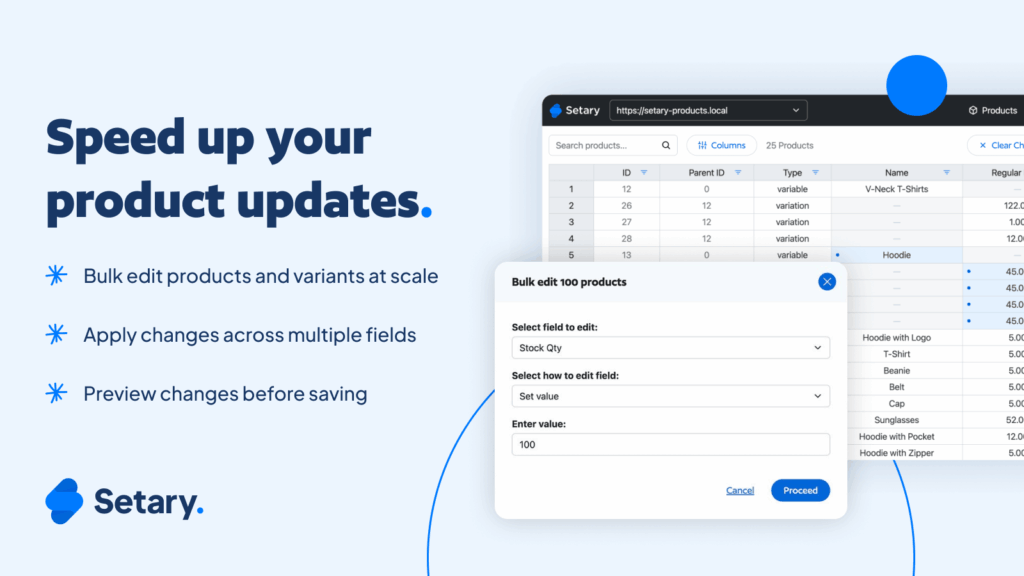
Setary is a cloud-based spreadsheet editor that connects to your Shopify store via API. Instead of syncing data between two separate platforms, you edit your products directly in a purpose-built interface. Changes save to Shopify when you’re ready, with no intermediate export or import steps.
The interface feels like Excel or Google Sheets because it’s designed to. Products appear as rows. Fields appear as columns. You can click into any cell and start typing. Copy, paste, and fill-down work exactly as you’d expect. Keyboard shortcuts behave the way spreadsheet users expect them to. The difference is that this spreadsheet is your actual product database, not a copy of it.
Setting up takes minutes rather than hours. Connect your Shopify store through OAuth, and your products appear in the interface. There’s no CSV formatting to learn, no API tokens to manage, and no sync schedules to configure. It just works.
In addition, you don’t need a Google account. There will be no sync delays or conflict errors between platforms. Your spreadsheet and your Shopify inventory are the same thing.
What You Can Do with Setary
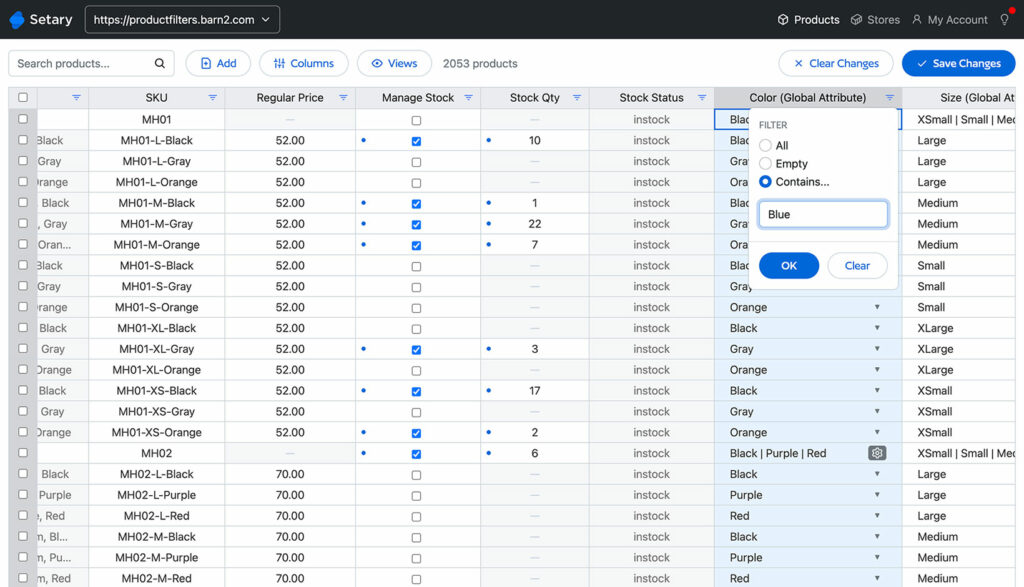
The inline editing works exactly like you’d expect from any spreadsheet. Double-click a cell, type your change, move to the next one. For simple updates to a handful of products, this is all you need.
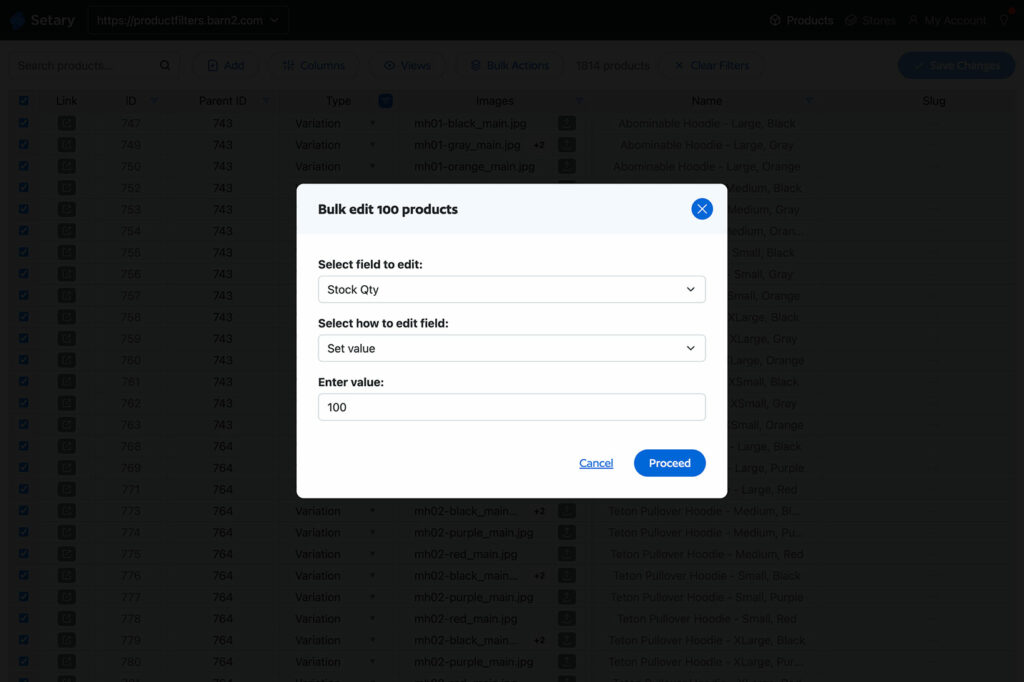
Where Setary really shines is bulk actions. Select multiple products using filters, then apply changes to all of them at once:
- Increase or decrease prices by percentage across an entire collection.
- Find and replace text across all product descriptions.
- Append warranty information to every product in a specific category.
- Set inventory levels for all products from a particular vendor.
- Update SEO fields across your entire catalog.
Variant management makes sense visually. You can expand variants to see them all, or collapse them to focus on parent products. The hierarchical relationship stays clear, so you’re never confused about which row controls which option.
Metafields appear as regular columns alongside standard product fields. If you’ve ever tried to bulk edit metafields through Shopify’s native tools, you know how painful that process is. In Setary, they’re just another column to edit.
The AI-powered features add another layer of efficiency. Generate or enhance product descriptions in bulk. Optimize existing content for SEO. These tasks that would take days manually can be completed in minutes.
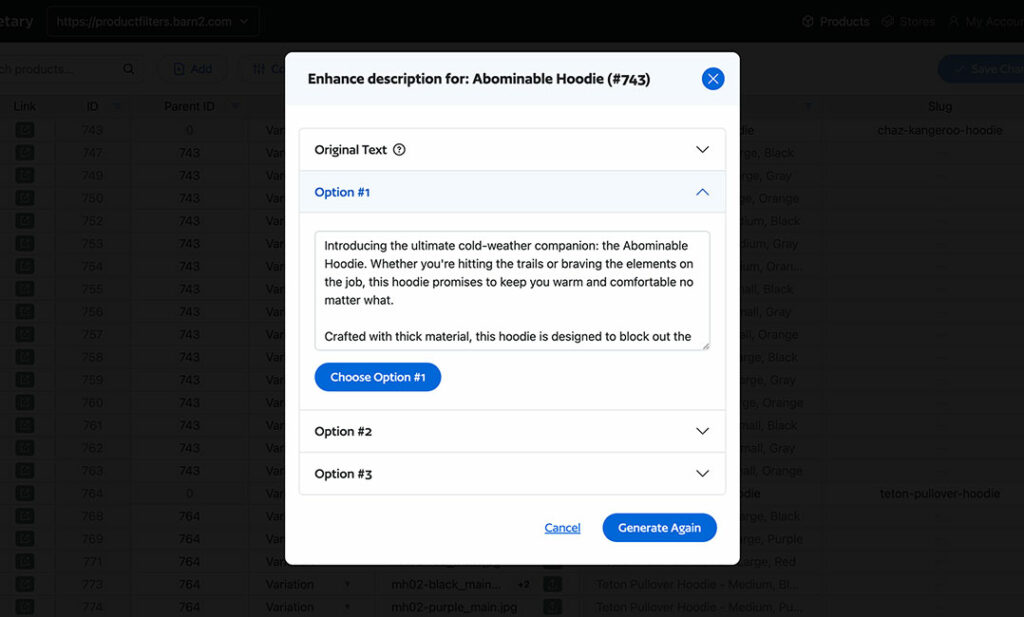
The preview feature provides peace of mind that Google Sheets sync tools simply can’t match. Made a mistake? Click undo before saving and the change disappears. Your live store never sees the error.
Who Should Choose Setary Over Google Sheets Sync
Stores that make frequent product updates benefit the most from dedicated editing tools. If you’re adjusting prices weekly, updating inventory after regular deliveries, or constantly refining product descriptions, the cumulative time savings add up quickly.
Merchants with complex catalogs find that purpose-built tools handle the complexity better. You fall into this category if you have many variants per product, extensive metafield usage, or large SKU counts. These all strain Google Sheets integrations but work smoothly in Setary.
Anyone who doesn’t specifically need Google’s collaboration features should consider whether those features are worth the sync headaches.
Businesses managing multiple stores find particular value in Setary’s multi-store capabilities. Connect multiple Shopify stores (or even Shopify and WooCommerce stores!) to a single account and switch between them seamlessly. You can then copy products between stores and maintain consistency across your entire operation from one interface.
Spreadsheet Editing Without the Sync Problems
Google Sheets integration has its place in a Shopify store’s toolkit. For reporting, analysis, and data sharing, it works well. However, for ongoing product management, it creates more problems than it solves.
The spreadsheet experience you want is available without the sync headaches. You don’t need to force two platforms to communicate constantly when a single purpose-built tool does the job better. Sometimes the best solution isn’t the one you originally searched for.
If you’re tired of sync failures, formula destruction, and the anxiety of pushing changes through a rickety integration, there’s a simpler path. Sign up for a free trial of Setary for Shopify and experience what purpose-built spreadsheet editing actually feels like. Your products deserve better than a workaround, and your time is worth more than troubleshooting sync errors.
Bulk edit anything in WordPress, WooCommerce and Shopify
Try our demo now and discover how you could save thousands of hours managing your site.
or try the demo