
WordPress ships with several built-in bulk editors. None of them cover everything you actually need to update on a growing site.
Most WordPress site owners meet the native bulk edit panel within their first week. It handles post status, author, and a handful of taxonomy fields. That covers basic housekeeping for a small blog.
The problem starts the moment your site grows beyond that. You add products. You launch a coupon campaign. You build out custom post types for events or courses. Suddenly the native tools fall short in obvious ways.
In this article, I’ll walk through every bulk editing scenario a WordPress site owner is likely to hit. We’ll cover what the built-in tools can do and where each one stops being useful. Then we’ll look at how a spreadsheet approach fills the gaps.
What Is Bulk Editing in WordPress?
Bulk editing means updating multiple items at once without opening each one individually. It applies to posts, pages, products, coupons, custom post types, and their fields.
Done well, bulk editing saves hours of repetitive admin work. Done badly, it forces you into manual edits or risky database changes. The right approach depends on what you’re editing and how flexible you need to be.
The Three Built-In Bulk Editors in WordPress
Most guides treat WordPress as having a single bulk editor. In practice, it ships with three separate tools. Each one covers a different slice of the job, and each one has clear limits.
1. The Bulk Actions Panel on Post Lists
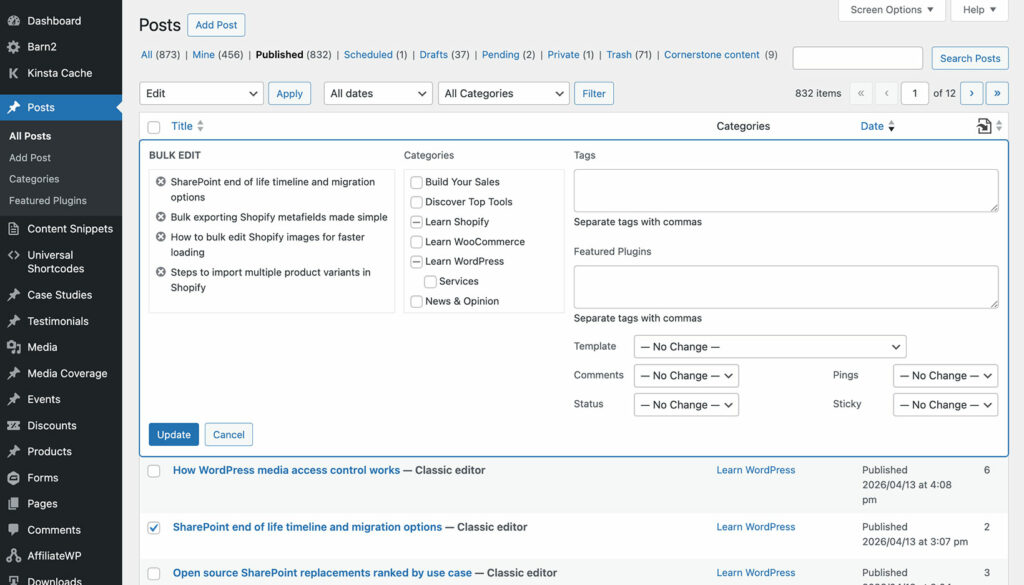
This is the tool most people think of first. You find it on any post list screen in the admin.
Go to Posts → All Posts or any equivalent list. Select the items you want. Choose ‘Edit’ from the ‘Bulk actions’ dropdown, then click ‘Apply’. A panel opens above the list.
The editable fields are:
- Categories (add only)
- Tags (add only)
- Author
- Status
- Comments on/off
- Pings on/off
- Sticky on/off
That’s it. The same value gets applied to every selected item. You can’t set different values per item, and you can’t touch custom fields.
2. Quick Edit
Quick Edit appears when you hover over a single row in any post list. It opens the same editor inline, but for one post at a time.
It saves a few clicks compared to opening the full post editor. However, it isn’t really bulk editing in any meaningful sense. You’re still editing one item, just faster.
3. The WooCommerce Product Bulk Editor
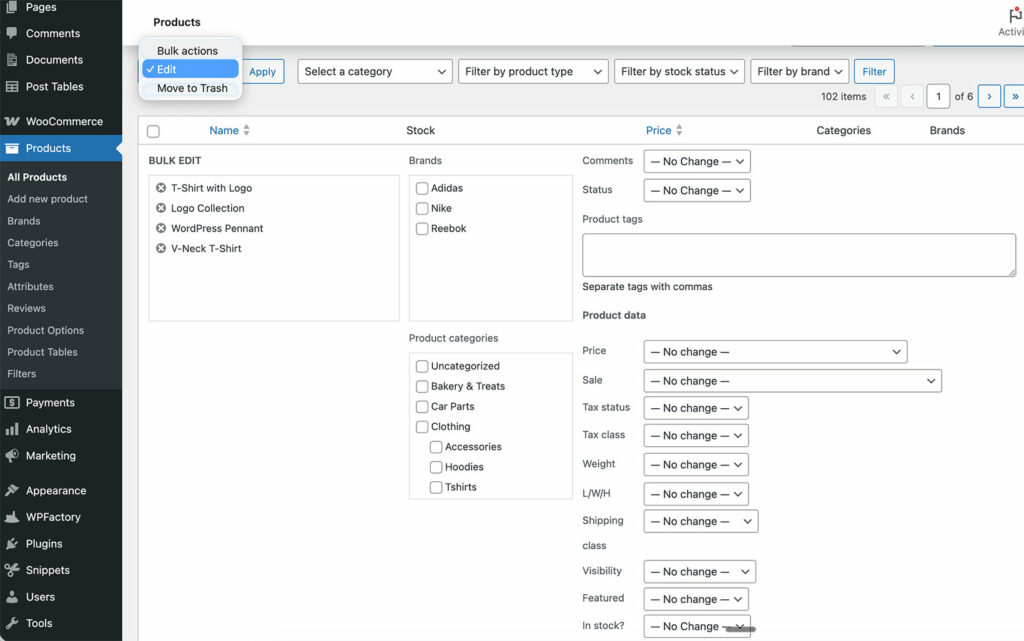
WooCommerce adds its own bulk editor on top of the WordPress one. It’s more capable than the core bulk panel because it includes more editable fields.
Go to Products → All Products. Select some products, choose ‘Edit’ from the bulk actions menu, and click ‘Apply’. The panel expands to include WooCommerce-specific fields.
The editable fields include price, sale price, stock status, tax class, weight, shipping class, and visibility. You can also increase or decrease prices by a fixed amount or percentage across all selected products.
This is genuinely useful for seasonal price adjustments. However, it still applies the same change to every selected item. You can’t set a different price per product through this panel. Many custom fields added by other plugins also stay invisible to it.
Bulk Editing Posts, Pages, and Custom Post Types
The native bulk panel handles core post fields reasonably well. It runs into trouble the moment you need to edit content that isn’t one of those seven fields.
For posts and pages, you can’t bulk edit titles, excerpts, featured images, slugs, or the post content itself. Each of those still needs a full editor session.
For custom post types such as events, courses, listings, or recipes, the situation gets worse. The native panel appears, but none of the custom fields that make the CPT useful are editable.
Take The Events Calendar as an example. Event dates, venues, organizers, and ticket limits all live in meta fields. None of them show up in the bulk edit panel. Updating a season’s worth of events means opening each one.
The same pattern applies to LearnDash or LifterLMS courses, real estate listings, portfolio items, and recipe collections. The native tools simply aren’t built for meta-heavy content types.
Bulk Editing Ecommerce Products
Product catalogs are where bulk editing gets commercially important. A store with 500 products might need price updates every month. Most ecommerce plugins for WordPress such as WooCommerce, SureCart, FluentCart and Easy Digital Downloads add their own bulk editor, but each one has real gaps.
What Native Product Bulk Editors Handle
The bulk edit panels added by ecommerce plugins generally cover the core fields. You can typically change prices, stock status, tax settings, and visibility across selected products. Some also let you apply percentage-based price increases or decreases.
That covers seasonal price adjustments and basic catalog housekeeping. It doesn’t go much further.
Where They Fall Short
Most native product bulk editors apply the same value to every selected product. You can’t set a different value per row. You also can’t see your product data laid out as a table for review. And they leave big gaps in what’s actually editable:
- Product titles and descriptions
- SKUs (one at a time only)
- Dimensions and weights per product
- Custom attributes such as color or material
- Product-specific shipping overrides
- Custom fields and ACF data attached to products
The Variation Problem
Variable products are the worst offender. A single product with 20 variations means 20 individual edits to update prices or stock levels. Most native editors don’t even show variations in the main product list.
This is one of the most common reasons store owners look for a better solution.
Bulk Editing Ecommerce Coupons and Discounts
Coupons are a genuine blind spot across most WordPress ecommerce plugins. Few of them include any meaningful bulk edit option for discount codes.
You’ll typically see a list of all your coupons in the admin, but no bulk edit option beyond deletion. Every change has to happen one coupon at a time.
Common Coupon Bulk Edit Scenarios
Coupon campaigns tend to involve a lot of repetitive changes. Here are the situations that come up most often:
- Adjusting discount amounts. You ran a 10% sale and want to switch 30 coupons to 15% for a new campaign.
- Updating expiry dates. You want to extend Black Friday codes through Cyber Monday without editing each one.
- Changing usage limits. You want to cap usage on a batch of influencer codes that performed too well.
- Toggling coupon status. You want to deactivate seasonal codes after a sale ends rather than deleting them.
- Renaming codes. You want to rebrand a set of coupons to match a new campaign structure.
- Clearing expired coupons. You want to remove old codes without clicking through each one.
Without a dedicated tool, every one of these tasks means manual work. On a store with dozens or hundreds of coupons, that adds up fast.
Setary loads all your coupons into a spreadsheet view. You can filter by expiry, status, or discount type, then edit any field inline. Changes save in bulk, so a campaign that would have taken an hour takes a few minutes.
Bulk Editing Custom Fields and ACF Data
Custom fields are the most common reason people look for a bulk editing solution. They’re also the thing the native WordPress admin handles worst.
Custom fields store the data that makes each post unique beyond its title and content. Prices, specs, locations, dates, featured toggles, all of it lives in post meta. None of it appears in the native bulk edit panel.
Advanced Custom Fields uses standard post meta under the hood. Any tool that can read post meta can work with ACF data. The common field types that people need to bulk edit include:
- Text fields for addresses, descriptions, or short labels
- Number fields for prices, ratings, or counts
- True/false toggles for ‘featured’ or ‘on sale’ flags
- Date pickers for events, expiry dates, or deadlines
- Select and radio fields used as status labels
- Checkbox fields for multi-select options
A spreadsheet-style WordPress bulk editor solves this cleanly. Each row is a post, each column is a field, and you edit cells directly. That lets you set different values per row rather than applying one change to everything.
Bulk Editing Taxonomies
Taxonomies cover two distinct jobs. You might want to change which terms are assigned to posts, or you might want to edit the terms themselves.
Assigning Taxonomy Terms in Bulk
The native bulk panel lets you add categories or tags to selected posts. It doesn’t let you remove them or replace them. Custom taxonomies such as ‘Event Type’ or ‘Course Level’ don’t appear in the panel at all.
Product attributes in WordPress ecommerce plugins face the same gap. Size, color, and material attributes all need per-product editing by default.
Editing Taxonomy Terms Themselves
Renaming 50 product categories, adding descriptions, or updating slugs all require visiting each term individually. There’s no built-in way to edit categories, tags and terms in bulk.
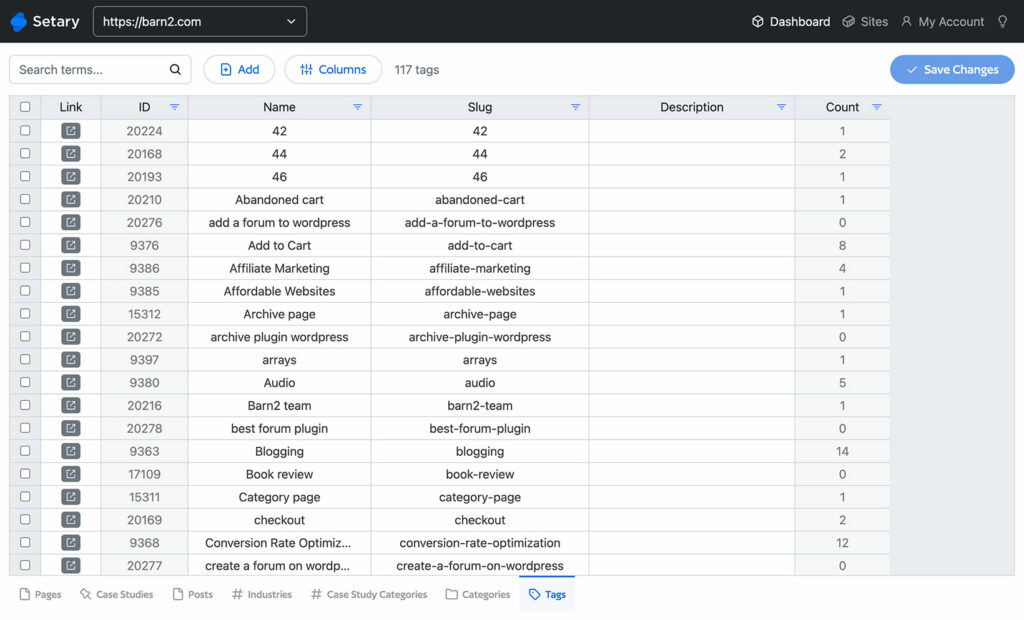
A spreadsheet tool that treats taxonomies as a content type solves both problems. You can edit term names, slugs, descriptions, and custom meta across hundreds of terms in one session.
Where the Built-In Tools Stop Being Enough
The native bulk editors work well for simple jobs. Switching drafts to published, reassigning authors, toggling stock status across a batch of products: these all work fine natively.
The moment any of the following comes up, the built-in tools run out of road:
- Setting different values per item rather than one value for all
- Editing custom fields or ACF data
- Bulk editing featured images
- Editing coupons in any way beyond delete
- Editing variations within variable products
- Editing custom taxonomies or product attributes
- Editing the taxonomy terms themselves
- Bulk updating meta fields on custom post types
Almost any WordPress site beyond a basic blog hits one of these walls eventually. That’s where a spreadsheet-style tool becomes the practical answer.
How Setary Handles Bulk Editing in WordPress
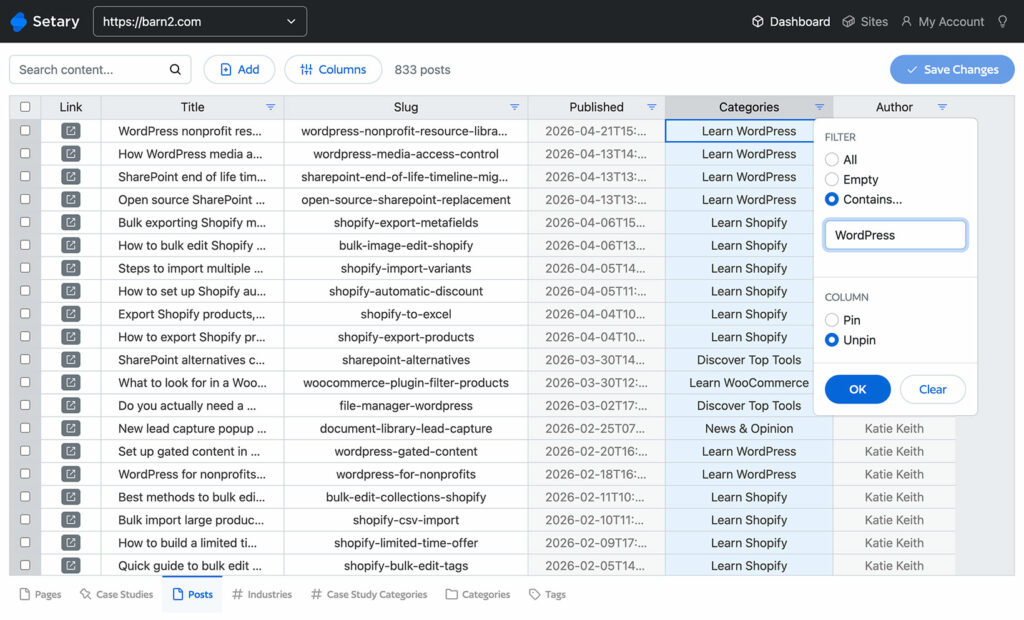
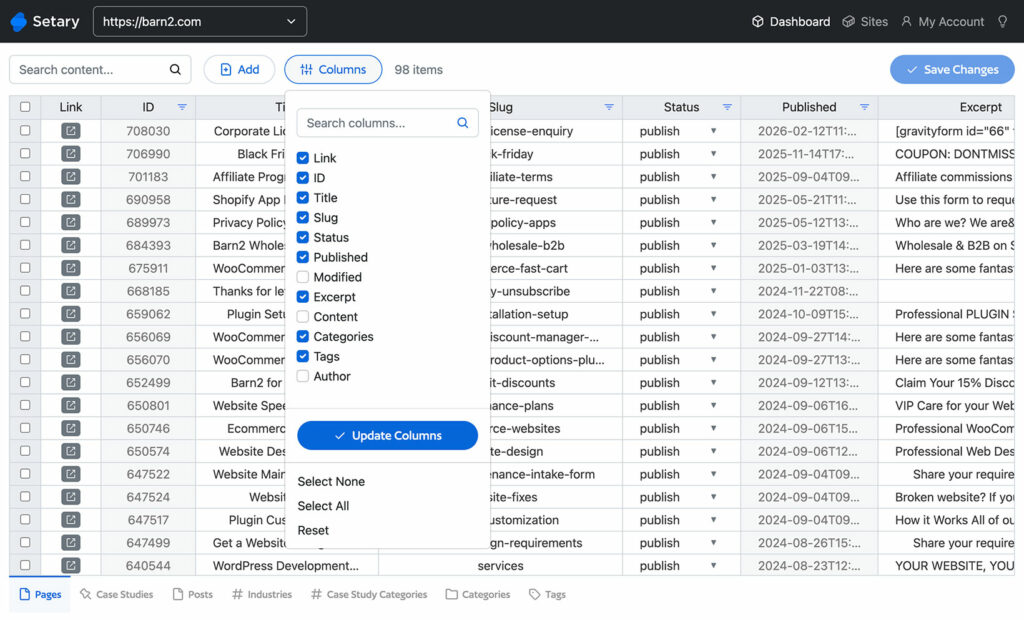
Setary loads your WordPress content into a spreadsheet interface. Rows are items, columns are fields, and you edit cells directly. The model is simple, but it removes almost every limitation of the native tools.
Key Differentiators
Setary runs as a web app, not a plugin. You connect it to your site via the REST API and edit in your browser, outside the WordPress admin. That means no admin slowdown, even on stores with thousands of products.
It also means you can work from a second monitor while keeping WordPress open in another tab. The spreadsheet view reduces mistakes because you see everything at once. No more flicking through individual edit screens to spot the change you meant to make.
What You Can Edit
Setary covers all the categories the built-in tools miss:
- WooCommerce products, including variations, custom attributes, and all standard fields.
- WooCommerce coupons, with every field editable in bulk.
- Posts, pages, and custom post types with title, content, excerpt, and status editable inline.
- Custom fields and ACF data including text, number, date, select, and true/false types.
- Categories, tags, and custom taxonomies as editable columns.
- Featured images to multiple posts at once.
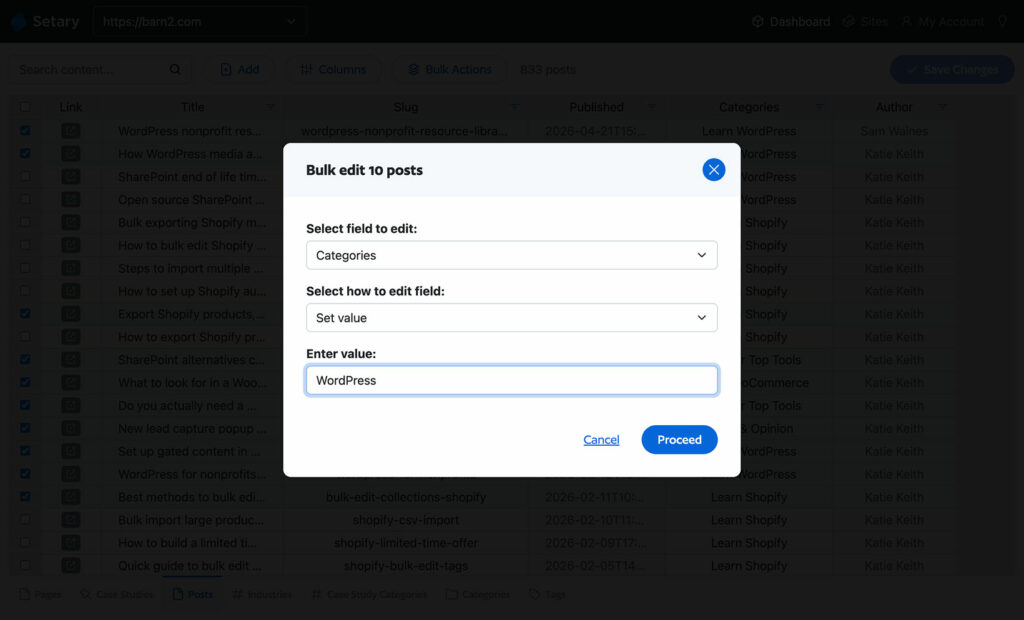
- Batch updates to apply the same value across multiple selected rows at once.
I find that the spreadsheet approach makes the biggest difference on sites where I need to set different values per item. The native bulk panel only applies one change to everything. Setary’s bulk edit app lets me update as many posts as I like in one quick session ☺️
Bulk Editing in Setary: Step-by-Step
Getting started takes about five minutes.
- Install the Setary companion plugin. Find it in the WordPress plugin directory under ‘Setary’. Activate it and generate an application password from your user profile.
- Connect your site to Setary. Log in at setary.com and add your site using the application password. The connection uses the REST API, so no FTP or database access is needed.
- Pick a content type. Choose posts, pages, a custom post type, products, or coupons from the Setary interface. Your content loads as a spreadsheet with one row per item.
- Add the columns you need. Use the column picker to add custom fields, ACF fields, taxonomies, or product attributes. Setary reads your registered fields automatically.
- Edit inline. Click any cell to change the value. Type for text fields or pick from dropdowns for taxonomies and select fields. Changes stay highlighted until saved.
- Batch update where useful. Select multiple rows and apply the same value to a column across all of them. Great for status changes, expiry updates, or bulk price shifts.
- Save. Click save to push all pending changes to your WordPress database at once.
Frequently Asked Questions
Can You Bulk Edit Ecommerce Coupons in WordPress?
Not natively. The WordPress admin has no bulk editor for coupons beyond deletion. Editing expiry dates, discount amounts, or usage limits requires opening each coupon individually. A spreadsheet tool such as Setary loads all coupons into an editable grid, which solves this.
Can You Bulk Edit ACF Fields in WordPress?
Yes, with a plugin or tool that supports post meta. ACF stores data as standard post meta, so any bulk editor that reads meta can update ACF values. Complex field types such as repeaters and flexible content remain difficult to bulk edit.
Does Setary Work With Both WordPress and Shopify?
Yes. Setary supports WordPress sites and Shopify stores through the same spreadsheet interface. You sign up separately for each platform, connect each site, and switch between them in the dashboard.
Choosing the Right Approach
The built-in WordPress bulk editors are fine for simple jobs. Status changes, author reassignment, and standard taxonomy updates all work natively without any extra tool. If that covers what you need, save your money.
The moment you hit custom fields, coupons, or variations, the native tools stop being practical. The same applies to any job where different items need different values. A spreadsheet-style approach becomes the obvious solution. Setary’s WordPress bulk edit spreadsheet handles every category covered in this guide from a single interface. You’ll be amazed at how much time it saves you! Sign up for a free trial today.
Bulk edit anything in WordPress, WooCommerce and Shopify
Try our demo now and discover how you could save thousands of hours managing your site.
or try the demo