
If you have a sale starting in two days and 300 product descriptions to update, the math on manual editing is grim. Most store owners have done it at least once — and decided never again.
Shopify does have a built-in option for bulk editing product descriptions. It works well enough for small jobs. But once you’re dealing with a large catalog, its limits start to get in the way. That’s where tools like Setary come in.
This guide walks through how to bulk edit description in Shopify using both approaches — what the native editor can do, where it stops being practical, and how Setary handles the bigger jobs.
What It Means to Bulk Edit Descriptions in Shopify
Bulk editing product descriptions means updating multiple product descriptions at once, rather than opening each product individually.
It’s worth being clear about the two different types of descriptions in Shopify. The product description is the main content that appears on your product page. The SEO description (or meta description) is the shorter text that appears in search engine results. They’re edited in different columns, but you can update both in a single bulk editing session. This guide covers both.
Bulk editing becomes necessary in situations like pre-sale updates, supplier changes that affect product copy, rebranding, SEO improvements across the catalog, or adding compliance information that needs to appear on dozens of products at once.
How to Bulk Edit Descriptions in Shopify’s Native Editor
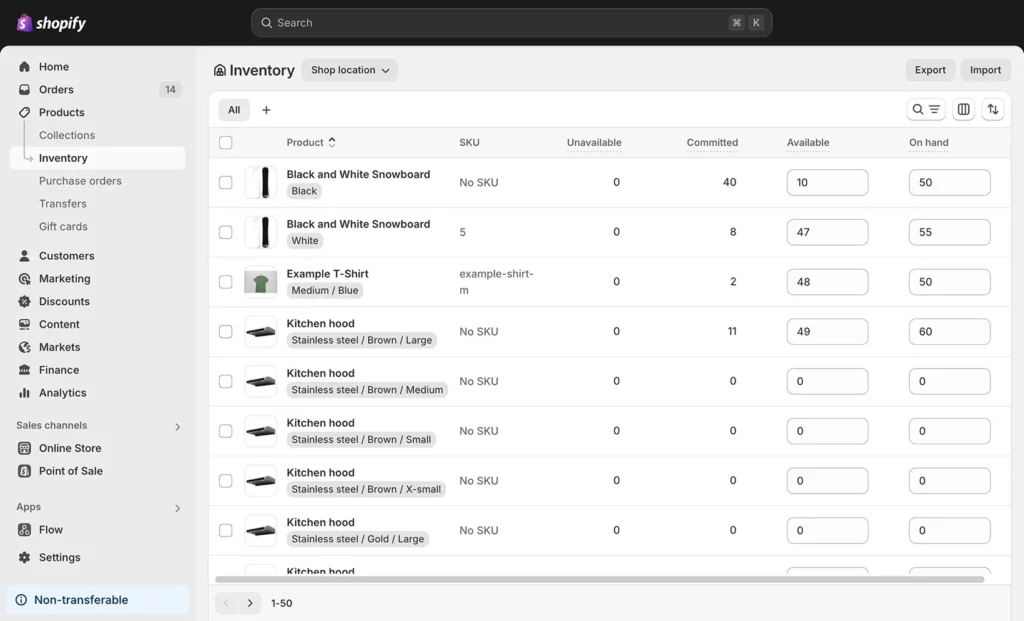
Shopify’s built-in bulk editor is free on every plan. It’s a reasonable starting point for smaller updates of fewer than 50 products without variants.
Here’s the process:
- Go to Products: Log in to your Shopify admin. Click Products in the left menu.
- Select your products: Check the boxes next to the products you want to edit. You can select all visible products on the current page using the top checkbox.
- Open the bulk editor: Click Bulk edit in the action bar at the bottom of the screen.
- Add the Description column: Click Columns in the top right corner. Select ‘Description’ from the General section.
- Edit descriptions: Click any Description cell to start editing. Type or paste new content directly. You can also use Shopify’s AI option to generate descriptions.
- Save your changes: Click Save. Changes go live immediately on your store.
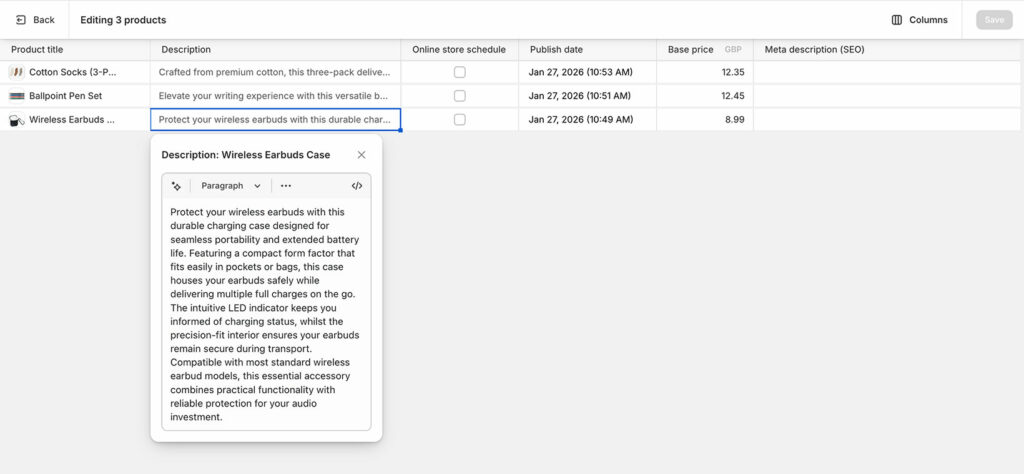
To edit SEO meta descriptions at the same time, add the ‘SEO description’ column from the same Columns menu. You can then work across both columns in a single session.
Time-Saving Tips for Bulk Description Editing in Shopify
- Copy and paste: Copy a description from one cell with Ctrl+C (or Cmd+C). Paste it into multiple selected cells at once.
- Drag to fill: Edit one cell, then drag the small square in the bottom-right corner of that cell downward to apply the same content to the products below.
- Multi-cell select: Hold Shift and click to select a range of cells. Type once to update all of them simultaneously.
The Limits of Shopify’s Native Bulk Editor
The native editor gets the job done for occasional small updates. For anything larger, you’ll start suffering from the following limitations:
- 50-product page limit: You can only see and edit 50 products at a time. Larger catalogs require multiple sessions, and it’s easy to lose your place between batches.
- No undo: Clicking Save applies changes immediately to your live store. There’s no rollback option.
- No find-and-replace: Need to update a phrase that appears across hundreds of descriptions — for example, changing a delivery timeframe or a discontinued product name? You’ll need to edit every product manually, which can be time-consuming.
- No variant descriptions: Variant-level descriptions aren’t accessible through the bulk editor. Each variant has to be edited individually on its own product page.
- No preview: You’re editing blind. There’s no way to review changes before they go live.
For a broader comparison of bulk editing Shopify products, including prices, inventory, and other fields, see our full guide.
How to Bulk Edit Shopify Descriptions with Setary
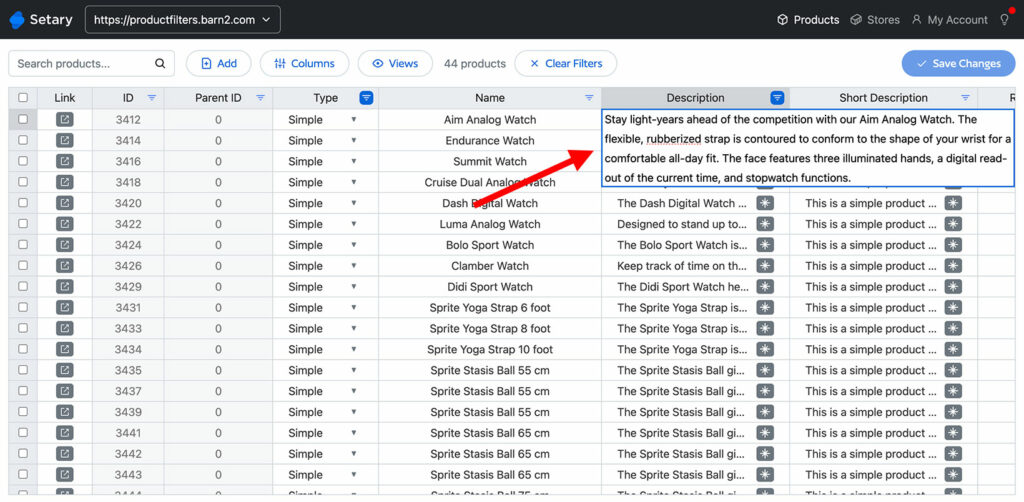
Setary connects directly to your Shopify store via API. This means no importing CSV files, and no risk of creating duplicate products through handle mismatches. Your products load into a spreadsheet-style interface where you can filter, edit, and save in a single session.
Here’s how to bulk edit descriptions using Setary:
- Connect your store: Sign up for a Setary account and enter your Shopify store URL. The connection is API-based, so setup is quick.
- Show the right columns: Use the column selector to display ‘Description’ and ‘SEO description’. Hide columns you don’t need to keep the view clean.
- Filter for the products you need: Use filters to narrow by collection, vendor, tag, or any other attribute. This is particularly useful when you’re updating Shopify descriptions in a specific category rather than your entire catalog.
- Make your edits (three methods):
- Click any cell to edit directly. Edit the description for each product or variant as needed, or copy-paste the same description into multiple cells and use drag-to-fill.
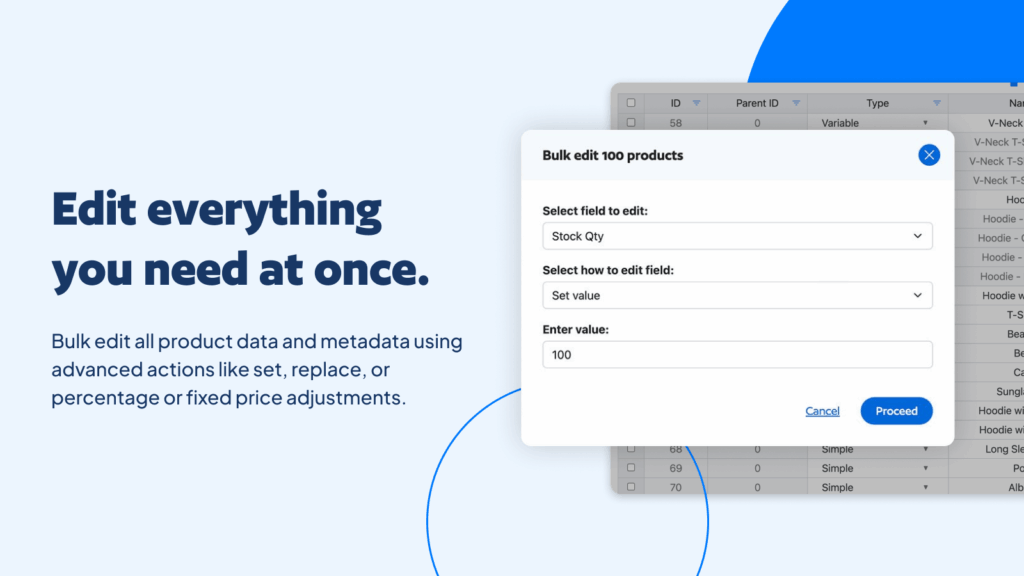
- Select multiple products and click the Bulk Edit button to apply the same description to all selected items at once. Alternatively, use the Bulk Edit to auto-add extra text to the start and end of the product descriptions. This is useful for adding special text all your descriptions during a sale or promotion.
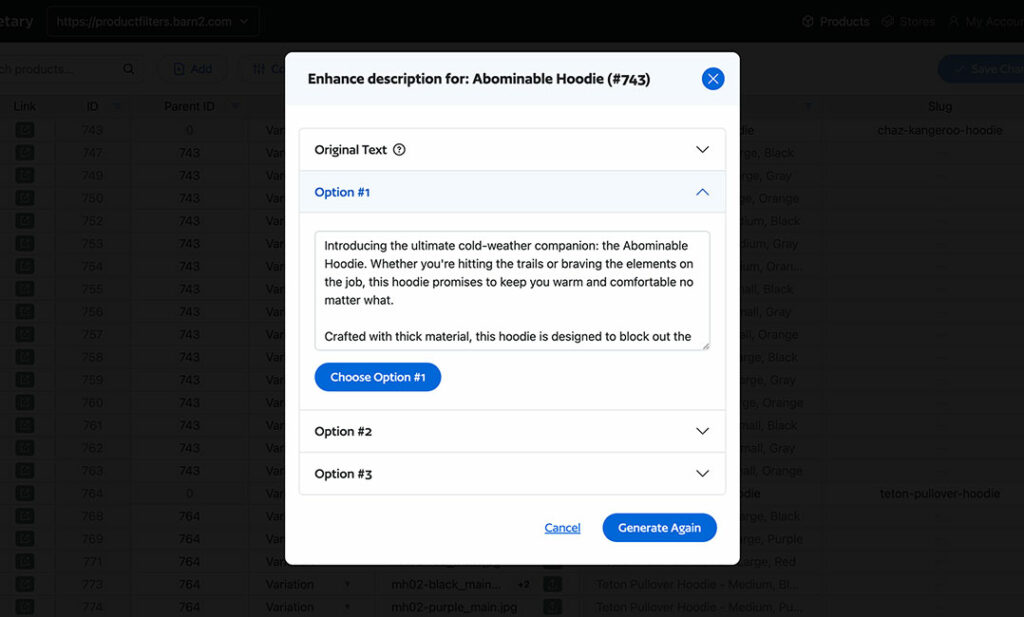
- Use the built-in AI tool to auto-generate product descriptions. This will give you a choice of three AI-optimized descriptions, which you can click to apply.
- Review before saving: Setary highlights your changes in the spreadsheet before you push them live. Catch mistakes before customers see them.
- Save: Changes sync directly to Shopify via API. You don’t need to import them back to your store manually.
Editing Variant Descriptions
Setary lets you access variant-level descriptions from the same spreadsheet view — something Shopify’s native editor doesn’t support. If you need to update descriptions for specific variants rather than the parent product, you can do that without switching between product pages.
Each variant appears as its own row in the Setary spreadsheet, underneath the parent product. Simply edit the description column to edit the variant descriptions in bulk.
See our guide to bulk editing Shopify variants for more detail on how this works.
AI Description Generation
For products that need new descriptions from scratch, Setary includes an AI generator. Select the products you want to update, and Setary generates descriptions based on the product attributes. You can then review and edit before saving.
Updating SEO Descriptions in Bulk
SEO meta descriptions are worth treating as a separate task from product descriptions, even though you can edit both in the same session. A product description is written for customers whereas an SEO description is written for search results. SEO descriptions also have a practical character limit (around 160 characters) that product descriptions don’t have.
Shopify’s native bulk editor does let you add the ‘SEO description’ column, but the same 50-product limit applies. In Setary, you can edit SEO descriptions alongside product descriptions, tags, and other metadata in one pass. These appear as a separate column in Setary.
For a full catalog refresh, see our guide to bulk editing Shopify tags to handle all your metadata in the same session.
Best Practices Before Any Bulk Update
Export a Backup First
Before any bulk editing session, export your products to CSV. Go to Products → Export in your Shopify admin, download your full catalog, and save the file with a date stamp (for example, “products_2026-04-02.csv”). Keep it somewhere accessible outside of Shopify.
This applies even when you’re using Setary. For large or critical updates, a backup is the right habit regardless of what tool you’re using.
Edit in Batches and Verify as You Go
Rather than updating your entire catalog in one go, work through it in manageable chunks. After each batch, check a sample of the updated products on your live store to confirm the descriptions look right. I find this catches formatting issues early, before they’ve spread across hundreds of products.
Test Find-and-Replace on a Small Group First
If you’re using find-and-replace to update a phrase across your catalog, test it on 5-10 products first. Confirm the output looks correct, then apply to the full selection. This is especially important when descriptions contain HTML formatting that could be affected by the replacement.
Run Big Updates During Off-Peak Hours
Changes to product descriptions go live immediately. For large updates, it’s worth making them during quieter periods — overnight or early morning — when fewer customers are browsing your store.
Bulk Edit Your Shopify Descriptions Without the Headaches
For small updates to a handful of products, Shopify’s native bulk editor does the job. For anything larger, the 50-product limit, the lack of undo, and the absence of find-and-replace make it the wrong tool for the task.
Setary’s spreadsheet interface covers all of those gaps — no CSV imports, no pagination, no editing blind. Sign up for a free trial of Setary for Shopify and see how much faster bulk description editing can be.
Bulk edit anything in WordPress, WooCommerce and Shopify
Try our demo now and discover how you could save thousands of hours managing your site.
or try the demo